Create a Prompt with AI Prompt Builder
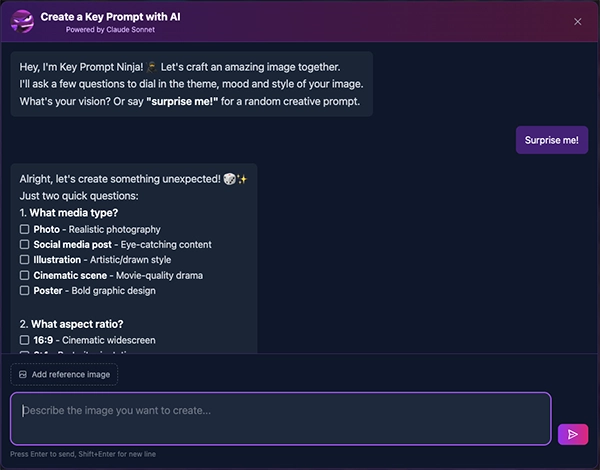
Key Prompt Ninja is the built-in AI assistant that uses natural language to help you create prompts for stunning images and videos. It helps you dial in the base prompt, themes, styles and camera controls aimed at creating the most descriptive prompt possible for the AI generation models. Describe your concept, attach images, and follow along as Key Prompt Ninja crafts JSON to create...
A DETAILED PROMPT IN SECONDS!
Host: Key Prompt Ninja
Overview
The AI Prompt Builder is a built-in AI assistant that lives right inside the MPM editor. Instead of manually clicking through dozens of style options, simply describe your vision in a chat conversation and the AI will configure all the settings for you - directly in the editor!
Benefits
- 10x Faster: Create complex prompts in seconds instead of minutes
- Built-in AI: Powered by Claude Sonnet, and available on the home page, Pro Editor 3.0 and Workspaces
- Conversational: Describe your vision naturally, see settings update live
- Reviews Reference Images: You can upload an image or have Key Prompt Ninja review existing reference images in the Workspace or Editor
- Seamless: All settings applied directly in the editor - no copy/paste needed
How It Works
Accessing the AI Prompt Builder
Key Prompt Ninja is available in multiple locations throughout MPM:
- • Home Page: Start building prompts directly from the MPM home page with the Create button
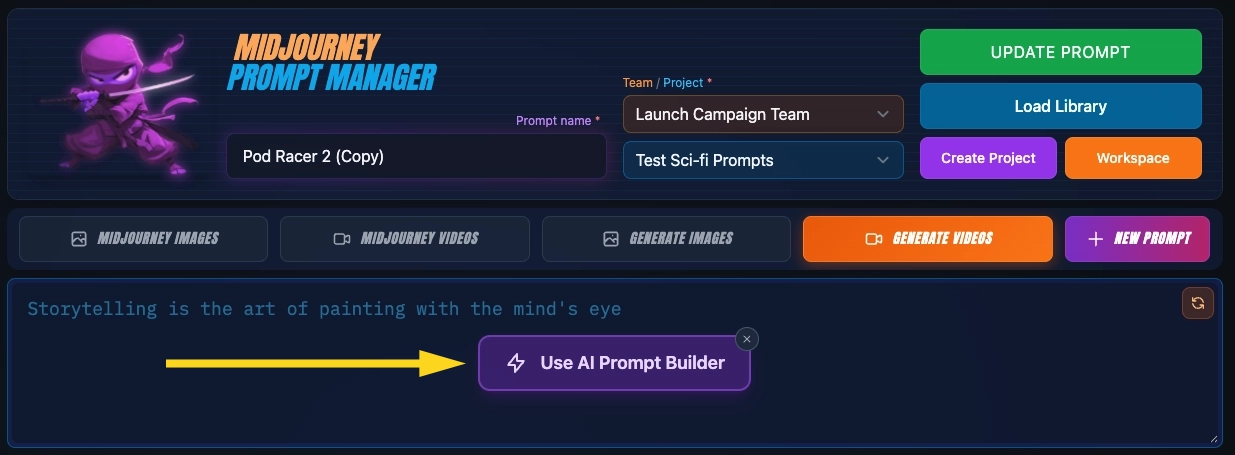
- • Free Editor 2.0: Click the "Use AI Prompt Builder" button in the base prompt text input field
- • Pro Editor 3.0: Click the "Use AI Prompt Builder" button in the base prompt text input field (can be minimized to the bottom right corner of the field)
- • Existing Prompts: Open any saved prompt in the editor and click the "Use AI Prompt Builder" tab
- • Project Workspace: Click on any prompt card to access the AI builder directly from the visual canvas
AI Prompt Builder in Workspaces
AI Prompt Builders for both Image Prompts and Video Prompts are now available in Workspaces!
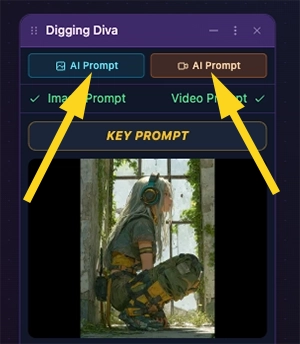
At the top of each prompt on the Workspace canvas, you can access either the AI Image prompt builder or the AI Video prompt builder using the buttons at the top. See the Project Workspace Guide for more details, but they work essentially the same as the other AI Prompt Builders.
Describe Your Vision
Type a description of the image you want to create in the chat box. Be as detailed or as simple as you like—the AI will ask follow-up questions if needed.
Example:
"I want to create a futuristic cyberpunk cityscape at night with neon lights and rain-slicked streets"
Answer a few Questions
The AI assistant (powered by Claude Sonnet) will have a conversation with you about your vision—asking about aspect ratio, mood, lighting, colors, and style preferences.
Example conversation:
AI: "What aspect ratio would you like for this cyberpunk scene?"
You: "16:9 for a cinematic feel"
AI: "Great choice! And what mood - dark and atmospheric with high contrast?"
You: "Yes, with lots of neon reflections"
Load Your Prompt
Once the AI generates your complete JSON configuration, click the "Open in Editor" button to instantly load it into the prompt builder, or click "Open in Workspace" to create a new project and open your prompt in the Visual Workspace. Your base prompt, parameters, styles, and camera controls (for video mode) will all be populated automatically.
Chat any time! Open the prompt builder at any time in the editor or workspaces to modify your prompt. You can even ask Key Prompt Ninja to analyze your reference images to help with prompt creation or Element direction (Kling 01).
Fine Tune the Key Prompt
Your prompt is fully editable! After the AI configures the initial settings, you can manually adjust anything using the visual editor. Change styles, tweak parameters, or add reference images. You can also launch AI Prompt Builder again, give it updated instructions, then click "Add to Prompt" to apply the changes.
Understanding Key Prompts
Key prompts are the final prompt that combines your base prompt text, parameters, styles and reference images that is sent to the Generative AI model to create your image or video.
Copy & Paste to Midjourney or Generate AI Images & Video
Once your Key Prompt is ready, you have multiple options depending on which editor you're using. Copy your prompt to Midjourney (Web UI or Discord), or generate images and video directly in the editor using 27 AI models.
Free Editor 2.0 (Image)
- • Copy prompt to Midjourney Web UI
- • Copy with /imagine for Discord
- • Copy optimized for other AI models
- • Save to your Prompt Library
Pro Editor 3.0
- • All Free Editor features
- • Generate images with 12 AI models
- • Generate videos with 8 AI models
- • Library image references
Workspaces
- • Visual canvas for prompt management
- • Connect prompts to generator nodes
- • All 27 AI models in one space
- • Drag-drop reference management
Example Configuration
Here's an example of the configuration the AI might generate for a cyberpunk cityscape prompt:
{
  "basePrompt": "A cyberpunk street scene at night with neon signs...",
  "midjourneyConfig": {
    "aspectRatio": "16:9",
    "mode": "Standard",
    "version": "6.1",
    "quality": 1,
    "stylization": 400,
    "weirdness": 200,
    "chaos": 25
  },
  "styleSelections": {
    "theme": "cyberpunk",
    "emotionMood": ["mysterious", "intense"],
    "cameraAnglesAndShots": ["low-angle-shot", "wide-shot"],
    "naturalLighting": ["blue-hour"],
    "timeOfDay": "midnight",
    "ambianceStyling": ["cinematic", "moody"],
    "ambientLighting": ["neon-glow"],
    "lightingEffects": ["back-light", "lens-flare"],
    "colorTreatment": ["saturated", "cool-tones"],
    "reflectionsRefractions": ["water-reflections"]
  }
}
Reference Image Review / Auto Suggestions
Key Prompt Ninja analyzes your reference images
When you add reference images to the editor or workspace, Key Prompt Ninja automatically recognizes them and offers intelligent suggestions to enhance your prompt based on what it sees.
Image Reference Suggestions
- • Style Refs: KPN identifies visual style, color palette, and artistic elements to suggest matching prompt descriptors
- • Character Refs: Detects character features, clothing, and poses to help maintain consistency across generations
- • Image Prompts: Analyzes composition and subject matter to suggest creative directions
- • Omni Refs: Provides holistic suggestions combining style and content elements
Video Reference Suggestions
- • Start/End Frames: KPN excels at analyzing frame images to describe the opening scene, motion trajectory, and final composition
- • Character Refs (Kling 01): Creates detailed video scenes with character consistency across the entire clip
- • Element Refs (Kling 01): Suggests how to incorporate objects, props, and environmental elements into your video prompt
- • Motion Suggestions: Recommends camera movements and subject actions based on your reference images
How it works
Simply add reference images to your prompt, then ask Key Prompt Ninja to help build or refine your prompt. KPN will analyze your images and incorporate relevant details into its suggestions — describing scenes, matching styles, or crafting motion sequences that align with your visual references.
Tips & Best Practices
Do
- ✓ Be descriptive about your vision
- ✓ Mention mood, lighting, and style preferences
- ✓ Let the AI suggest style combinations
- ✓ Continue the conversation to refine settings
- ✓ Add reference images after AI configures the prompt
Don't
- ✗ Rush the conversation - take time to describe details
- ✗ Forget to save your prompt after the AI configures it (When using the Editor - Workspace auto saves)
- ✗ Ignore the AI's suggestions - they're tailored to Midjourney
- ✗ Skip reviewing the final settings before copying
Troubleshooting
AI Not Responding
Problem: The AI assistant isn't responding to messages
Solution: Check your internet connection and try refreshing the page. The AI service may be temporarily busy - wait a moment and try again.
Settings Not Updating
Problem: Chatting with AI but editor settings aren't changing
Solution: Make sure you're on the "Use AI Prompt Builder" tab in the editor. The AI needs to reach a point in the conversation where it generates a configuration. Keep chatting to answer its questions about your vision.
Save Button Disabled
Problem: Can't save my prompt after using AI builder
Solution: Make sure you have: (1) A base prompt text entered, (2) A valid prompt name, and (3) Selected a project to save to.
Want to Start Over?
Question: How do I reset and start a new conversation?
Answer: Click the "Clear Chat" button in the Use AI Prompt Builder panel to start a fresh conversation. Your current editor settings will be preserved - only the chat history is cleared.
Ready to Get Started?
Start creating amazing Midjourney prompts with AI assistance today!
Try Visual Workspace!
After the AI Prompt Builder configures your prompt, take it to the Project Workspace to iterate generations, create references, fine tune and land on that perfect generated image or video!
AI Gen Cards
27 AI generation models to choose from and full Copy & Paste Midjourney support
Visual Organization
Arrange AI-built prompts on an infinite canvas. Create complete campaigns visually.
Reference Chains
Use AI-generated images as references for new prompts. Build iterative workflows.