Free Prompt Editor 2.0
Build professional Midjourney image prompts with 1,500+ style options.
Copy & Paste prompts or try Pro Editor 3.0 for image/video creation with 26 live models.
Storytelling is the art of painting with the mind's eye
Midjourney Image Parameters
Midjourney Image Parameters
Configure Midjourney image generation settings
- • 1: Default - fast GPU time (1x)
- • 2: Higher detail - 2x GPU time
- • 4*: Maximum detail - 4x GPU time (v7 experimental mode)
- • Quality affects initial 4-image grid only, not upscales
- • *Quality 4 is not compatible with Omni Reference
- • Note: --q 4 is separate from the --exp aesthetics parameter
Raw Mode tones down the aesthetic styling and "beautification" that Midjourney automatically applies to your images when using Standard Mode, and instead relies more on the specific details and direction in your prompt.
This gives you more control over the final images, allowing for more specific styles or realism. However, remember that detailed prompts are essential! If your instructions are unclear or lack details, the image might not turn out as visually appealing.
Raw Mode is compatible with Midjourney versions 5.1 and later.
Tip: Reference badges appear in the header when both the checkbox is checked AND a valid value/URL is entered.
Style Reference Code
Add a Style Reference Code (--sref)
Style reference codes are generated by Midjourney when you use --sref random. These numerical codes apply preset styles from Midjourney's internal library.
Enter a code value between 0 and 4294967295. You can reuse codes for consistent styles across prompts.
⚠️ Important: Sref codes are version-specific. v6/v6.1/Niji 6 codes work in v7 when you add --sv 4. v7 has its own code library (--sv 6 default).
Style Reference Images
Add Style Reference Image(s) (--sref image)
An image reference roughly transfers composition, subject, and some style to your canvas.
Link to your external image and provide the Image Weight (0-3 for v6, 0-2 for v5). Your file should end in .png, .gif, .webp, .jpg, or .jpeg.
Usage Tips:
- Lower weights (100-300) for subtle style influence
- Higher weights (400-1000) for strong style transfer
- Each image gets individual --sref and --sw parameters
- Compatible with all Midjourney versions (v6, v7, Niji)
Image Prompts
Add Image Prompts
Image prompts influence the composition, pose, and subject matter of your generation. Add up to 4 image URLs to guide Midjourney's understanding of what elements should appear in your image.
⚠️ Note: Raw image URLs may trigger video detection if they contain certain keywords. If Midjourney interprets your image as a video frame, it will automatically switch to video generation mode. Use the Style Reference Images section above if you want style transfer without video mode activation.
Weight Note: In Midjourney v7, the --iw parameter applies globally to ALL image prompts (unlike Style References where each image gets its own weight).
Usage Tips:
- Image prompts control WHAT appears (composition, poses, subjects)
- Style references control HOW it looks (artistic style, aesthetic)
- Use lower --iw values (0.25-0.75) for subtle composition guidance
- Use higher --iw values (1.25-2.0) for strong composition influence
- Image URLs are placed at the beginning of your prompt
- Works with all Midjourney versions (v5, v6, v7, Niji)
Video Starting Frame
Video Starting Frame Image
Add a reference image for video generation starting frame.
⚠️ Manual Step Required: After pasting this prompt into Midjourney, you must manually switch to Video mode in the Midjourney UI for the starting frame URL to work correctly. The URL will only function as a video start frame when video mode is enabled. Video ending frames must also be manually added through the Midjourney UI.
Usage Notes:
- Single image only (multiple frames not supported)
- Currently works as standard image prompt
- Place image URL at start of prompt (no --sref parameter)
Omni Reference (Midjourney Version 7)
Add an Omni Reference (--oref)
Omni Reference allows you to embed any visual element from a reference image - characters, objects, vehicles, or creatures - into your generated image.
Use a single reference image URL and control influence with the Omni Weight parameter (1-1000, default 100).
⚠️ Warning: Omni Reference costs 2x GPU time and is only compatible with Midjourney v7.
Note: Omni weight defaults to 100 in Midjourney. Change this manually in the Midjourney UI if you want a different weight value.
⚠️ Weight must be set in Midjourney UI - not available in prompts
Usage Tips:
- Lower weights (25-75) for style transfers or heavy modifications
- Higher weights (400+) to preserve specific details like faces or clothing
- Always combine with descriptive text prompts
- Compatible with Style References and other v7 parameters
Character Reference (Midjourney Version 6)
Add a Character Reference Image (--cref)
A character reference creates a character roughly based on image(s) of an existing character.
Link to your external image and provide the Character Reference Weight (0-100). Your file should end in .png, .gif, .webp, .jpg, or .jpeg.
Tip: A 0 Character Reference Weight references only the face of the character.
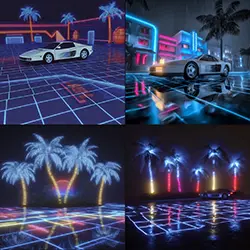
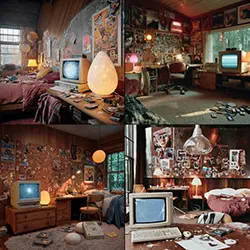
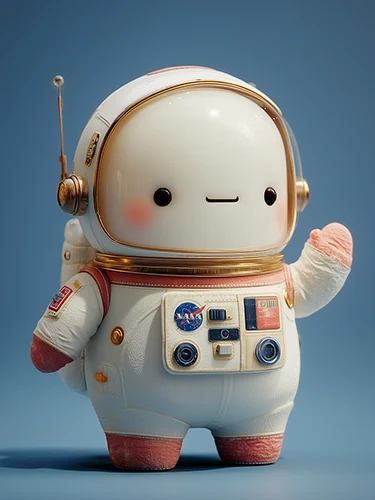
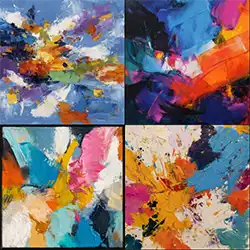
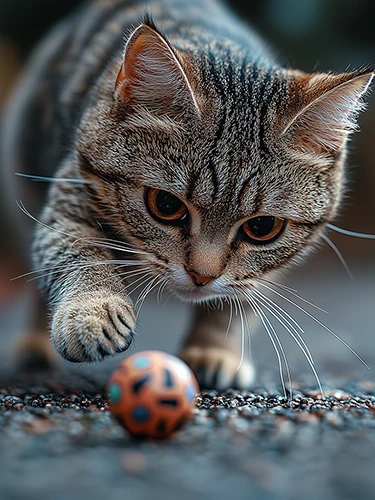
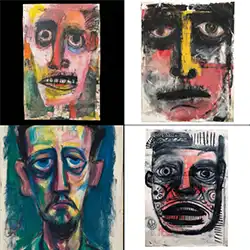
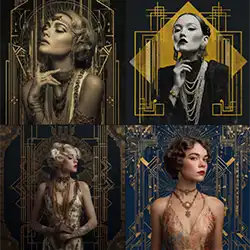
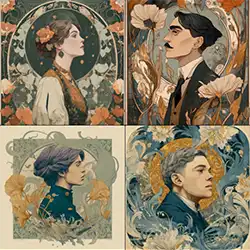
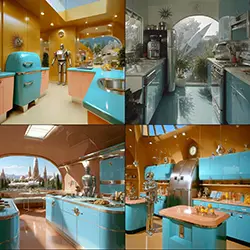
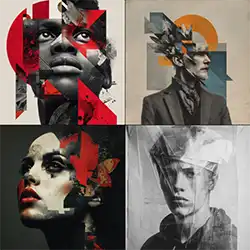
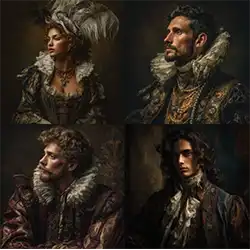
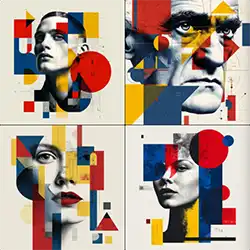
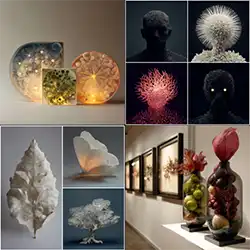
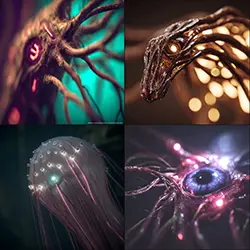
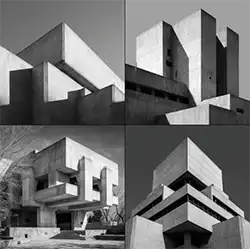
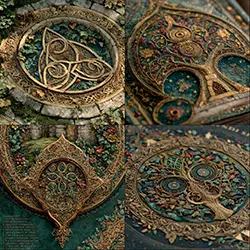
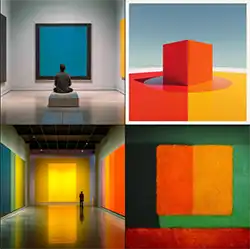
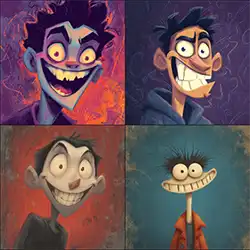
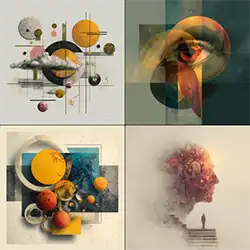
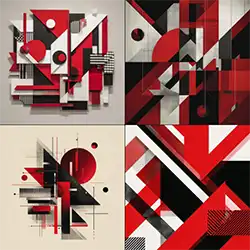
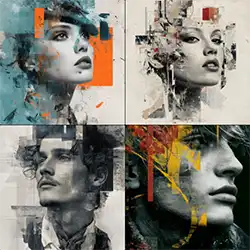
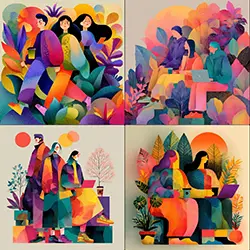
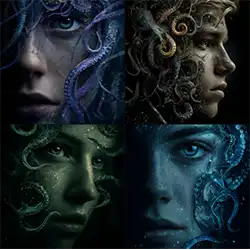
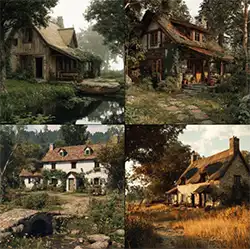
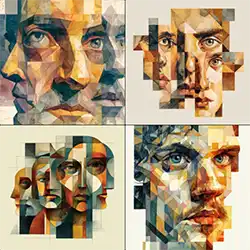
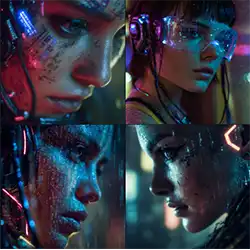
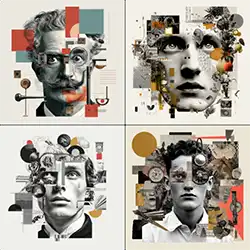
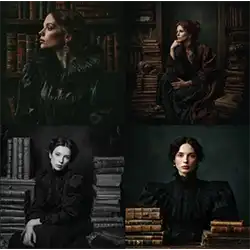
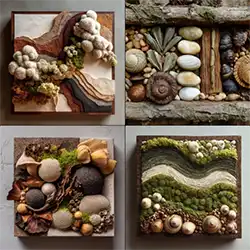
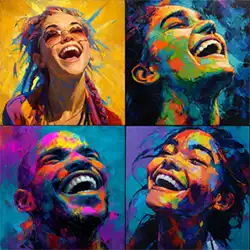
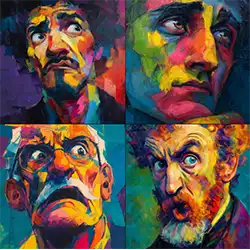
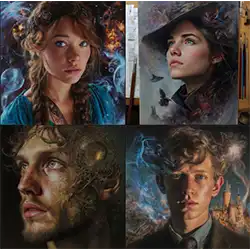
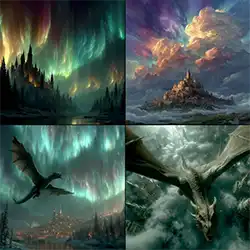
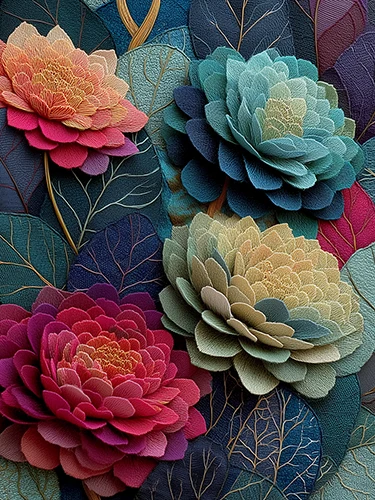
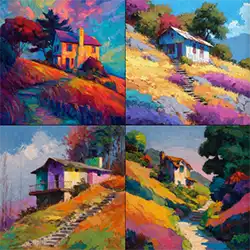
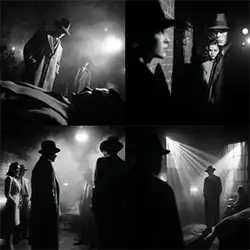
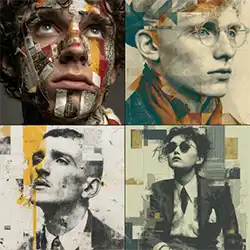
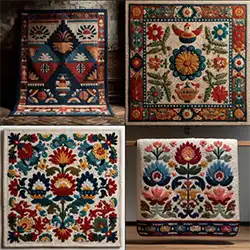
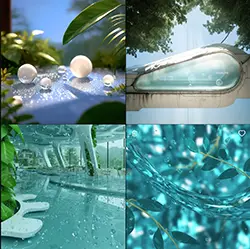
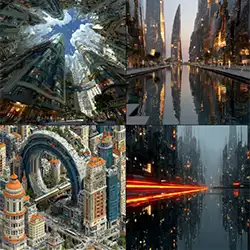
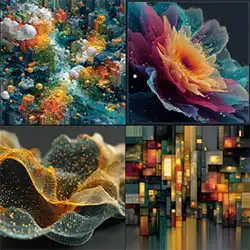
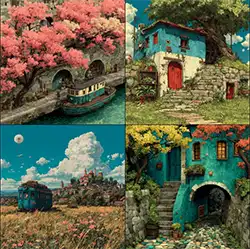
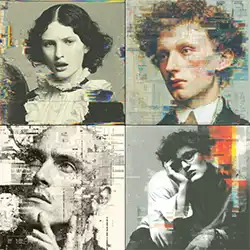
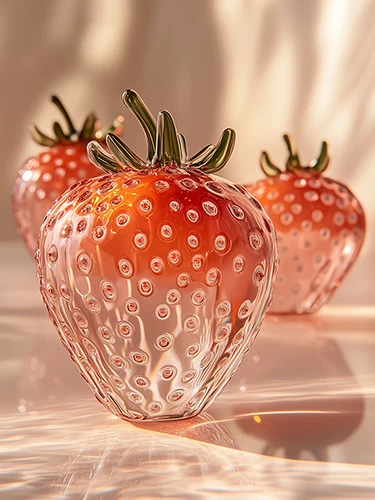

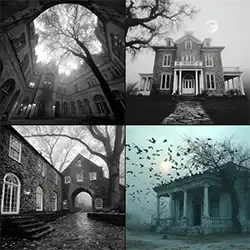
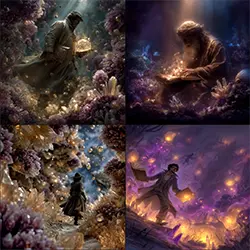
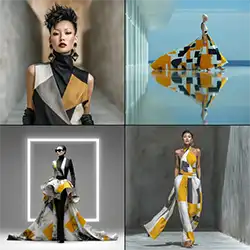
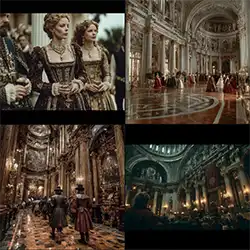
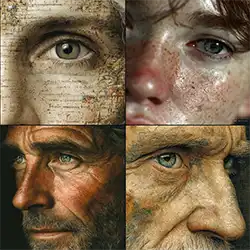

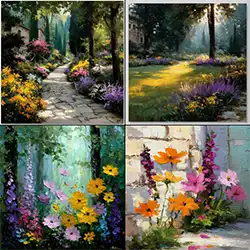
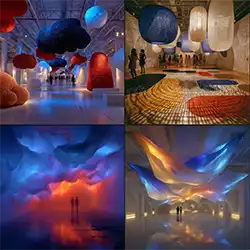

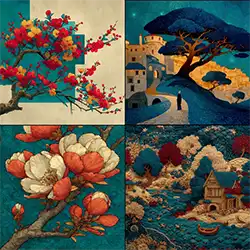
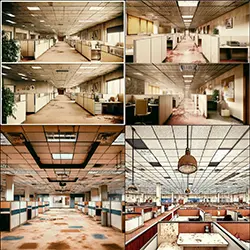
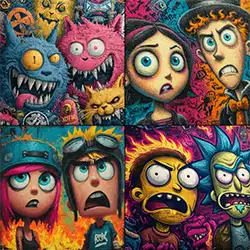
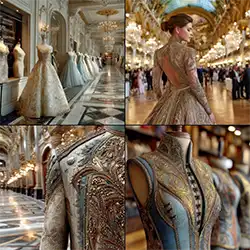
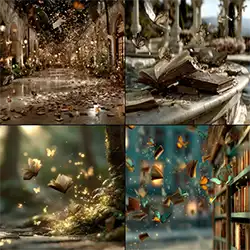
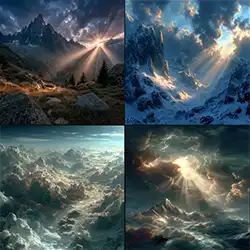
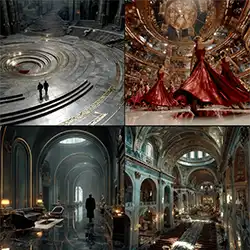
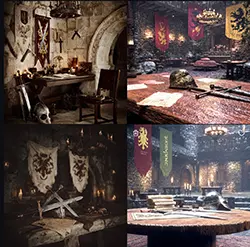
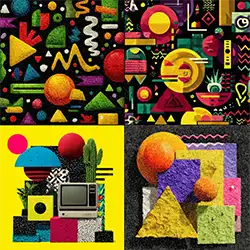
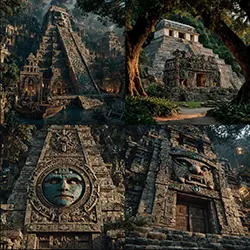
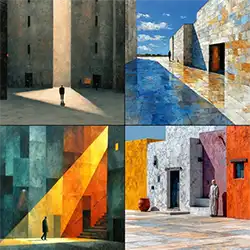
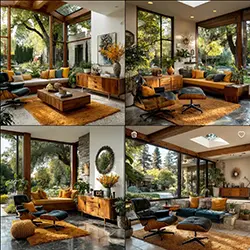
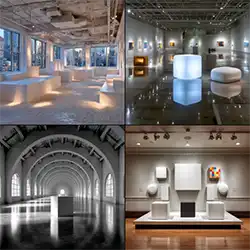
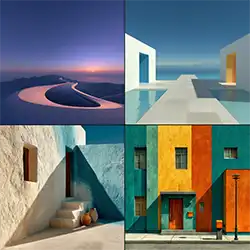
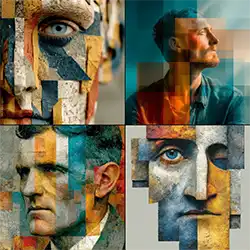
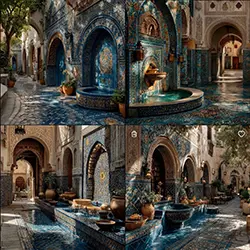
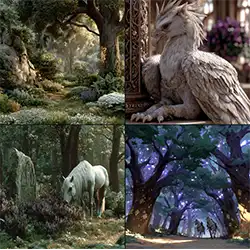
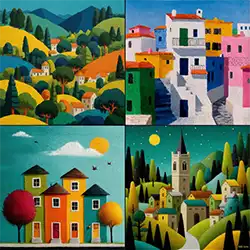
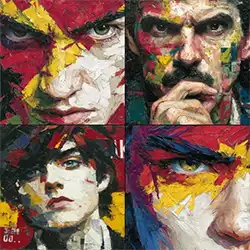
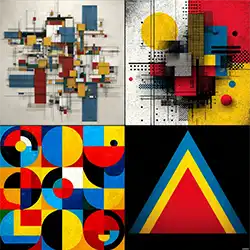
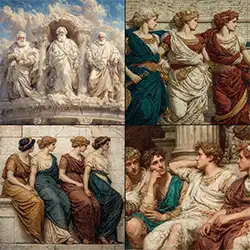
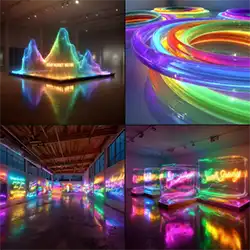
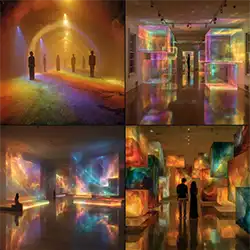
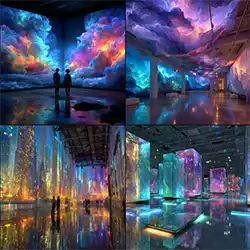
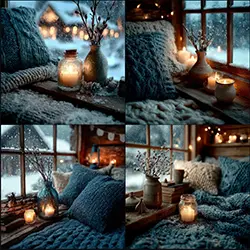
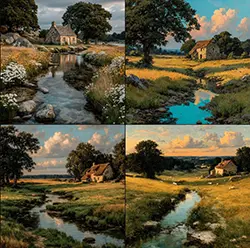
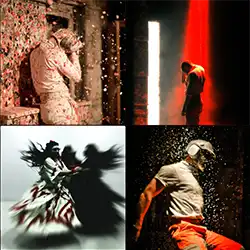
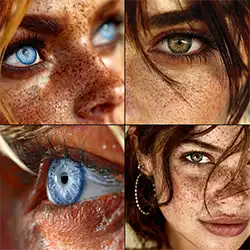
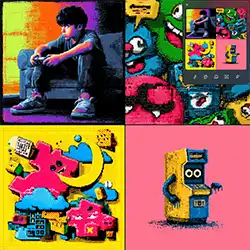
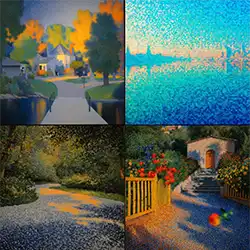
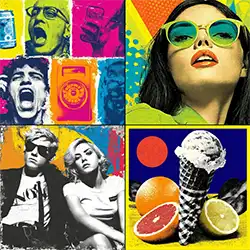
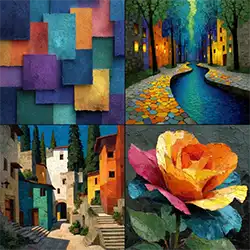
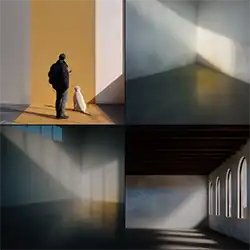
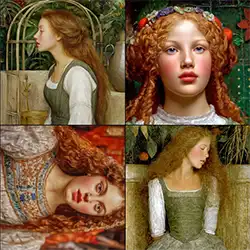
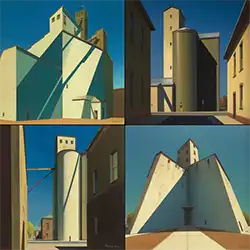
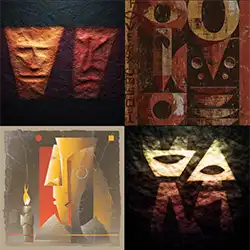
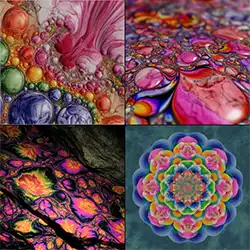
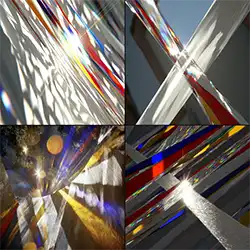
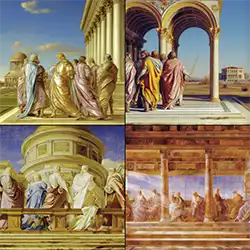
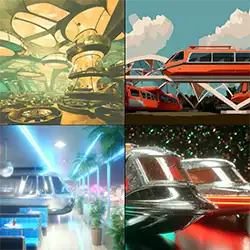
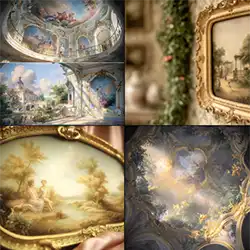
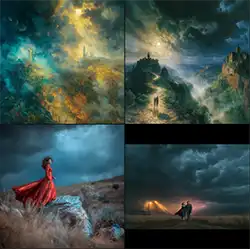
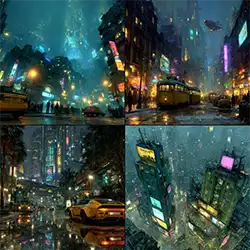
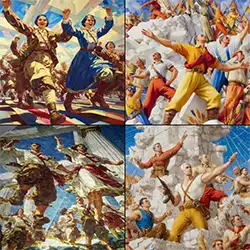
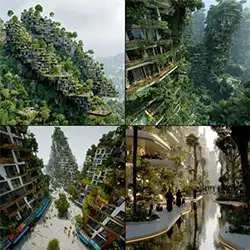
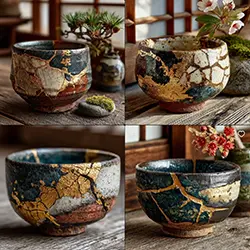
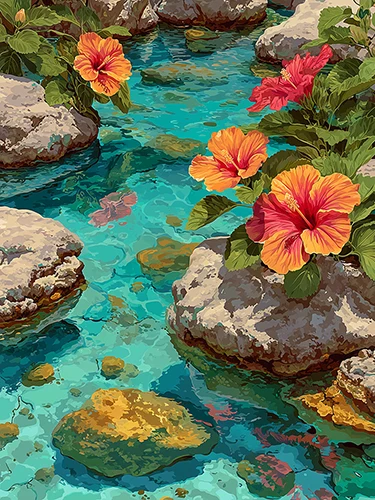
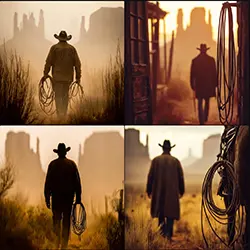
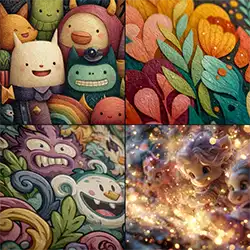
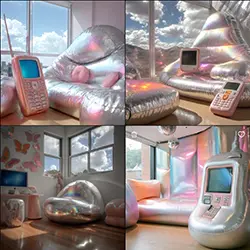
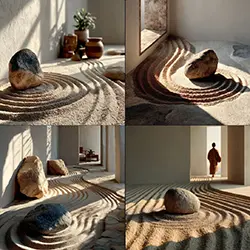
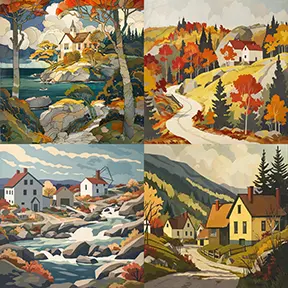
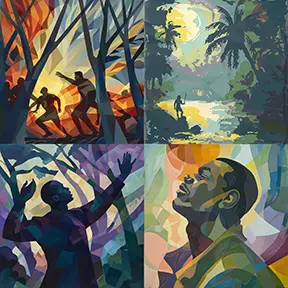
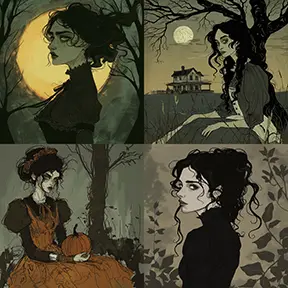
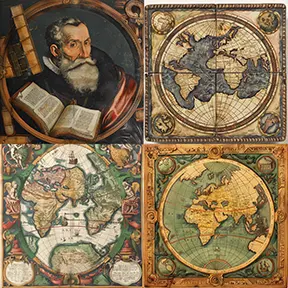
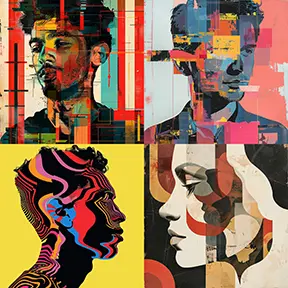
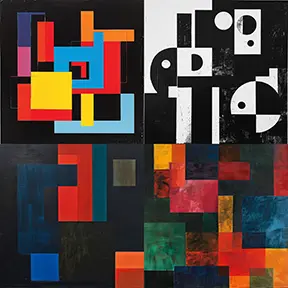
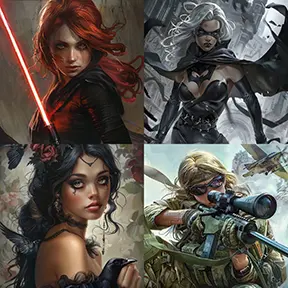
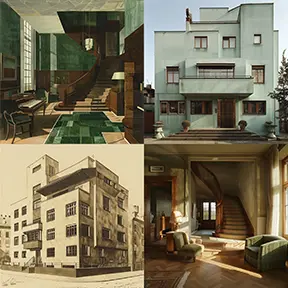
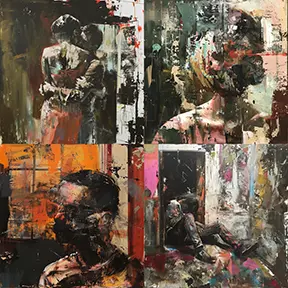
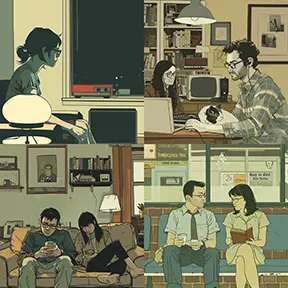
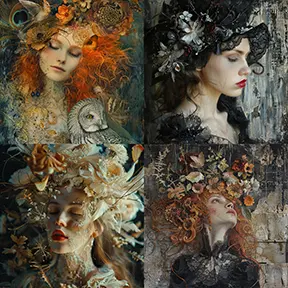
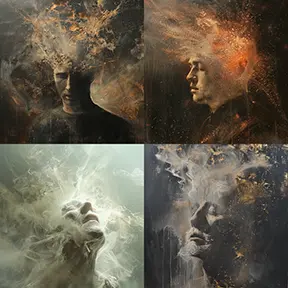
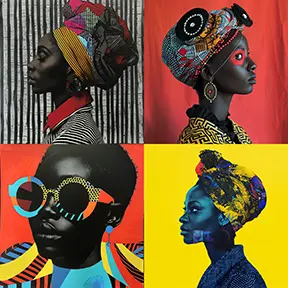
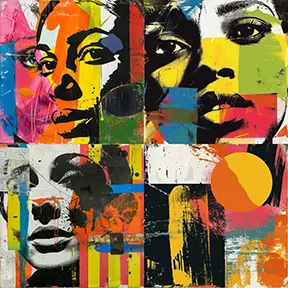
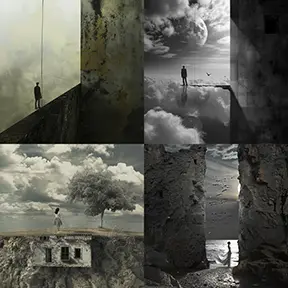
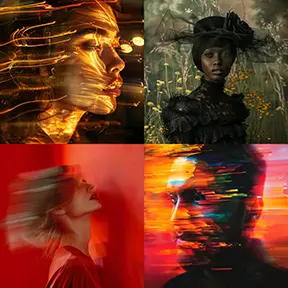
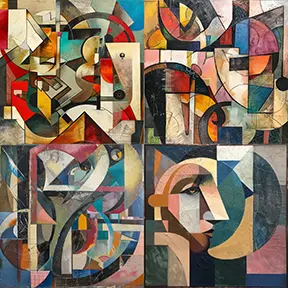
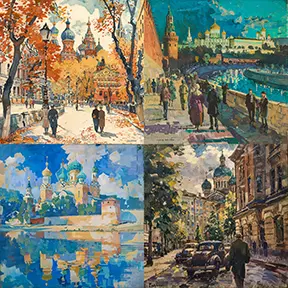
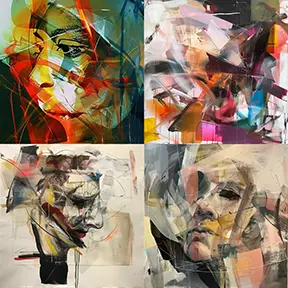
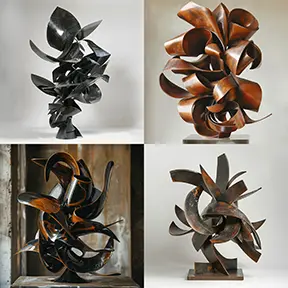
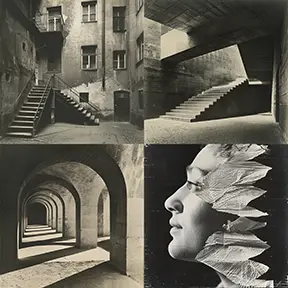
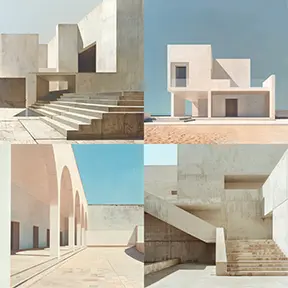
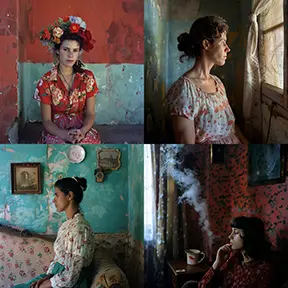
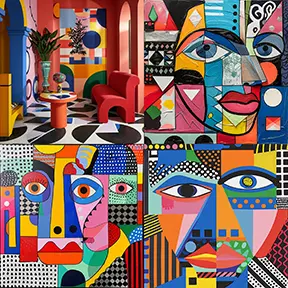
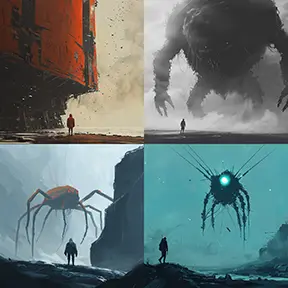
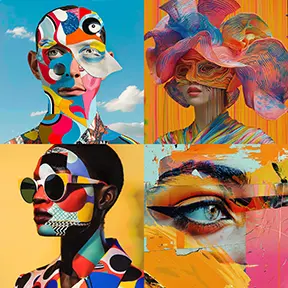
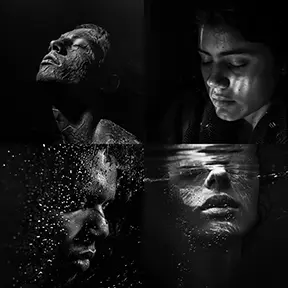
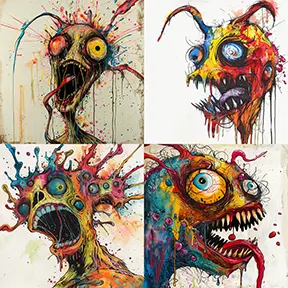
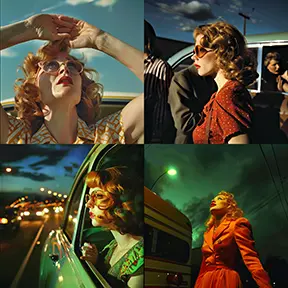
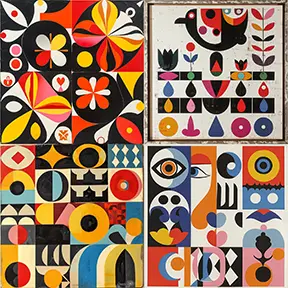
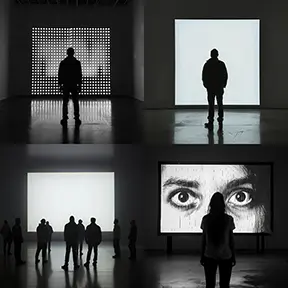
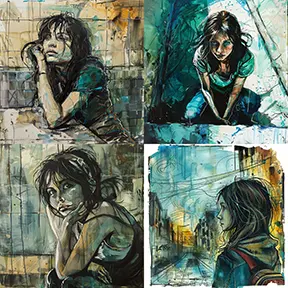
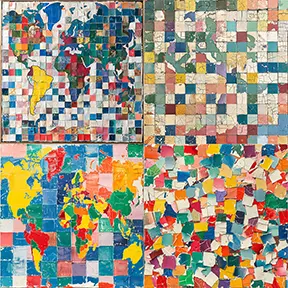
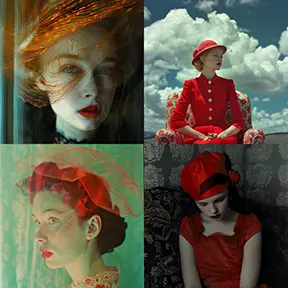
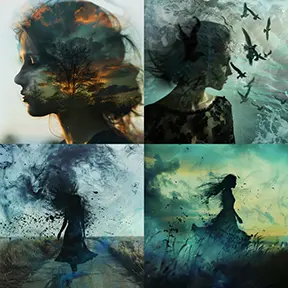
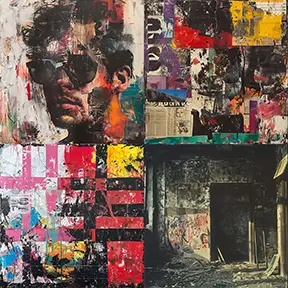
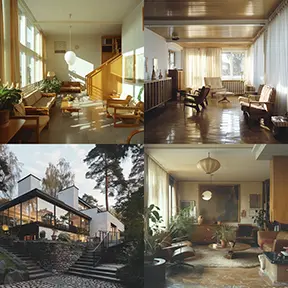
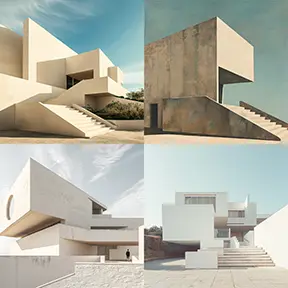
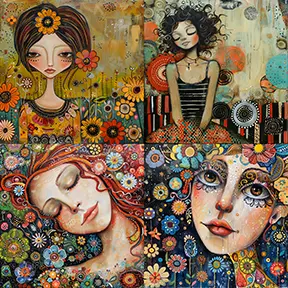
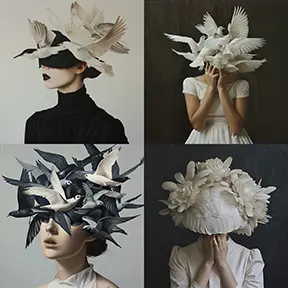
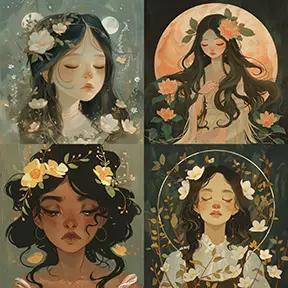
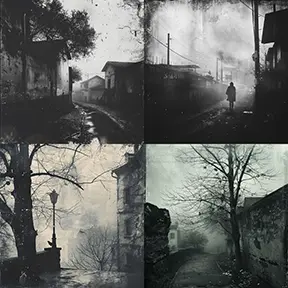
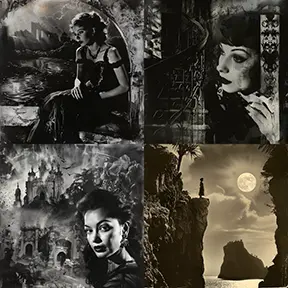
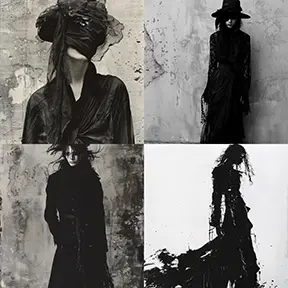
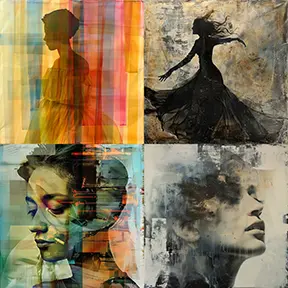
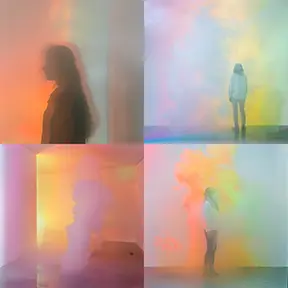
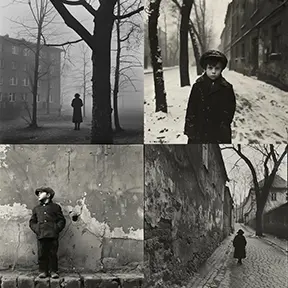
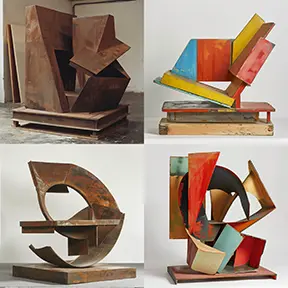
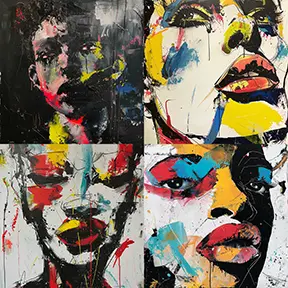
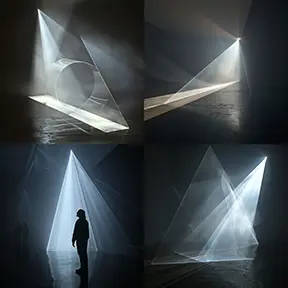
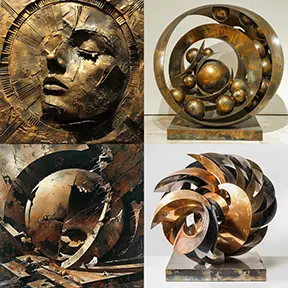
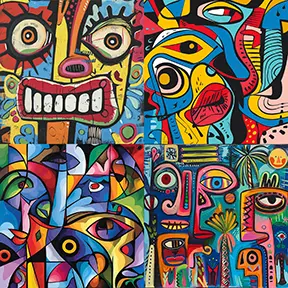
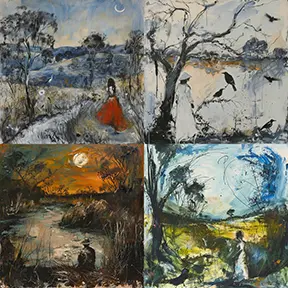
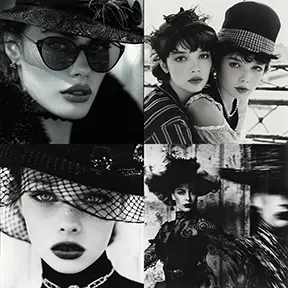
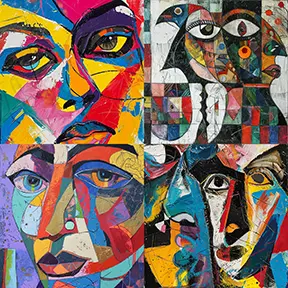
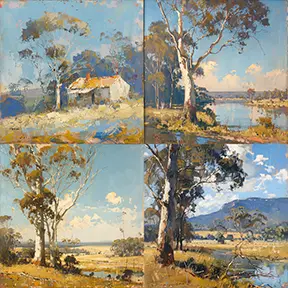
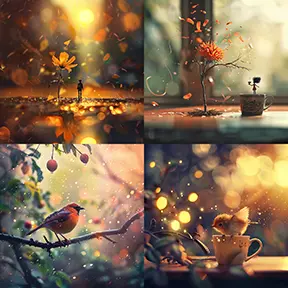
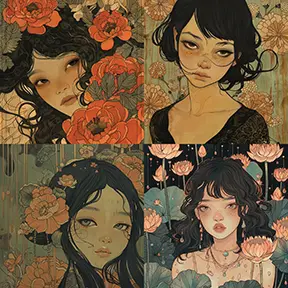
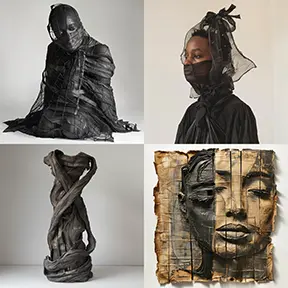
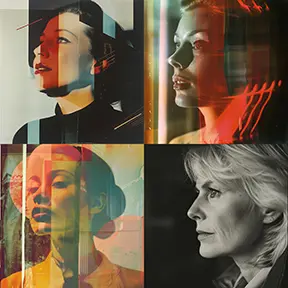
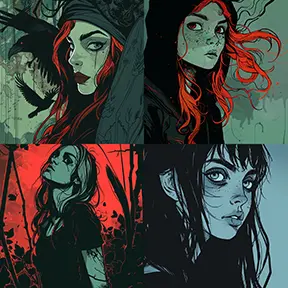
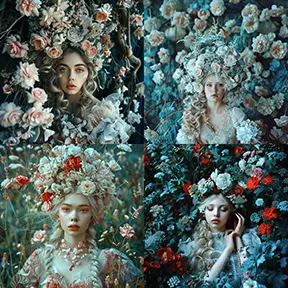
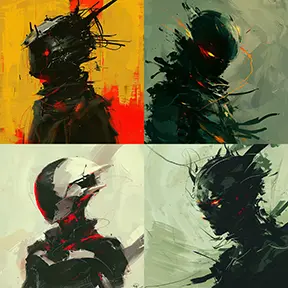
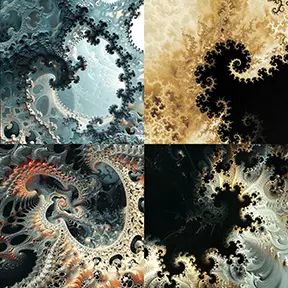
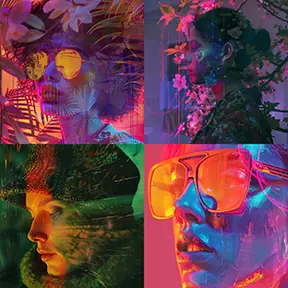
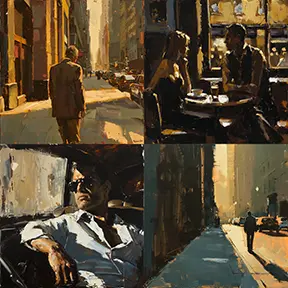
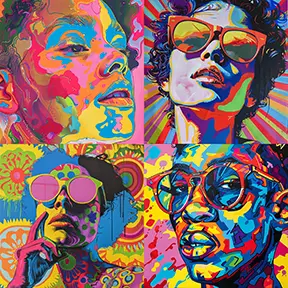
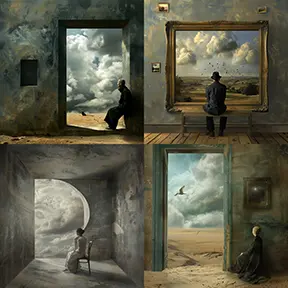
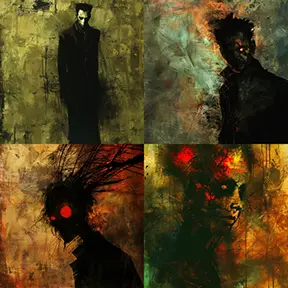
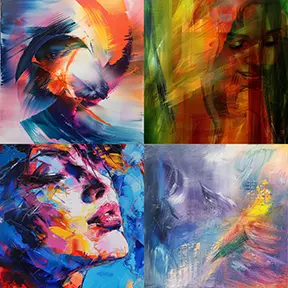
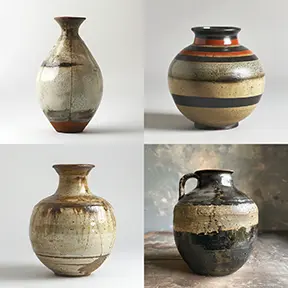
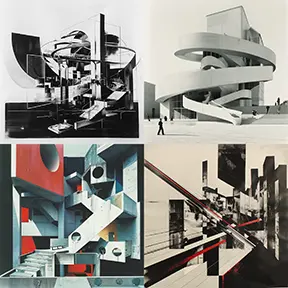
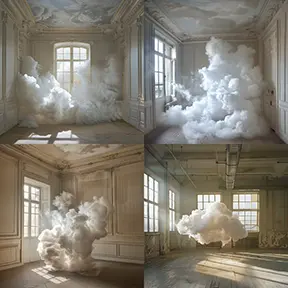
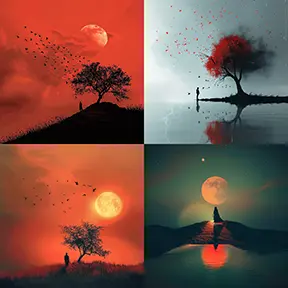
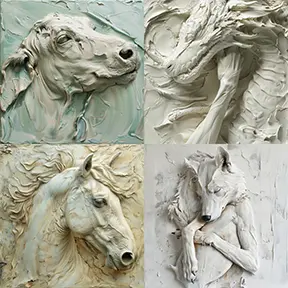
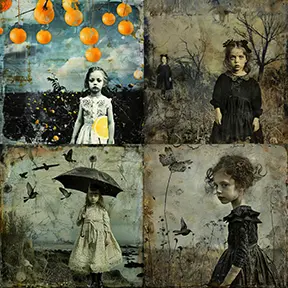
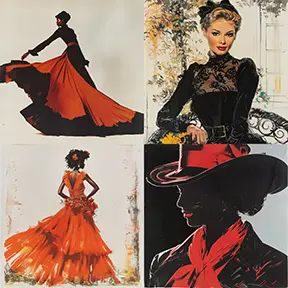
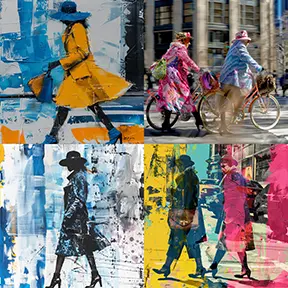
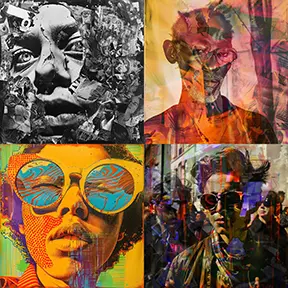
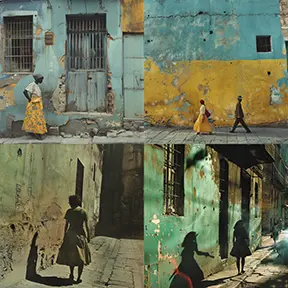
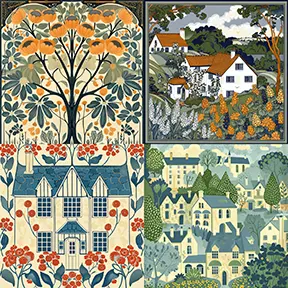
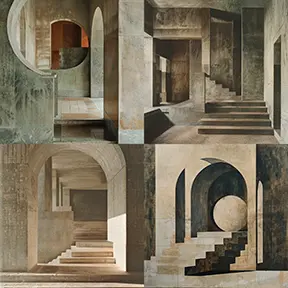
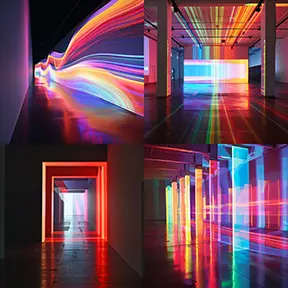
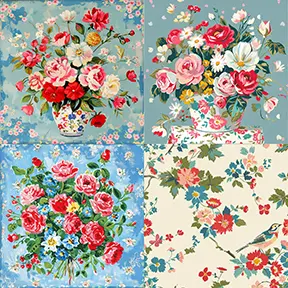
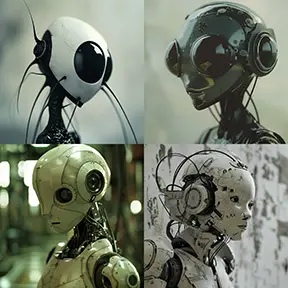
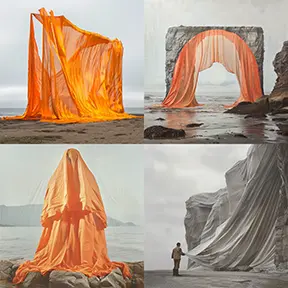
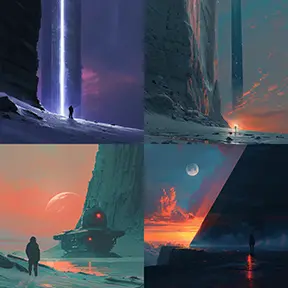
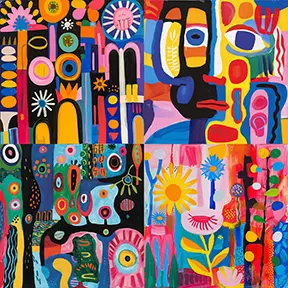
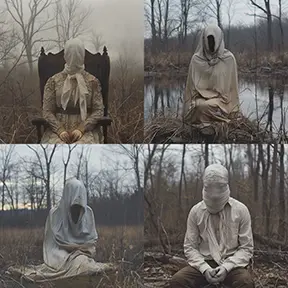
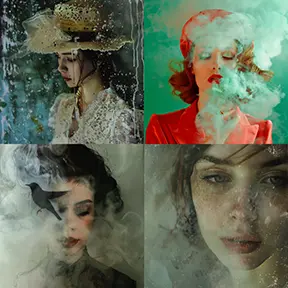
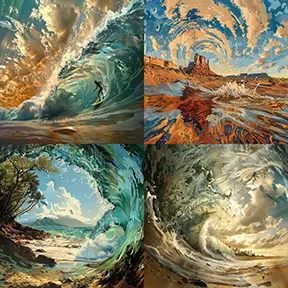
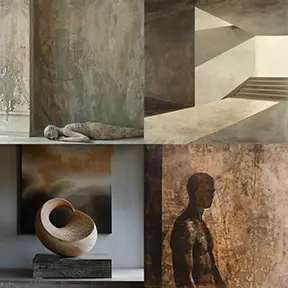
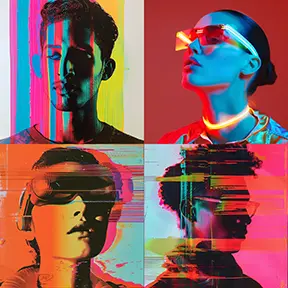
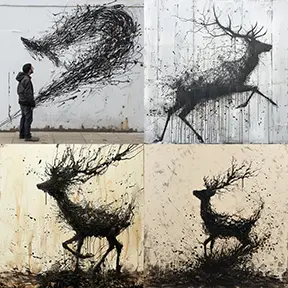
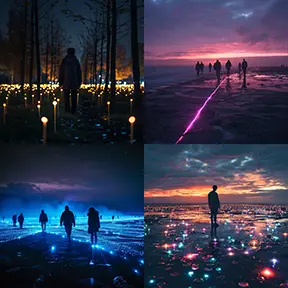
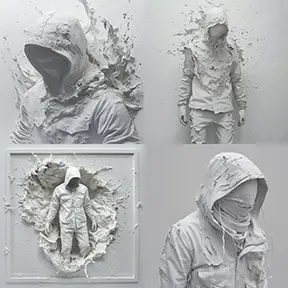
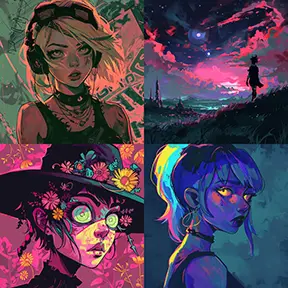
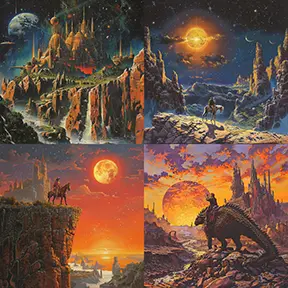
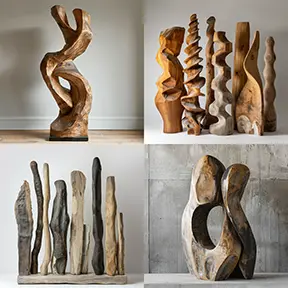
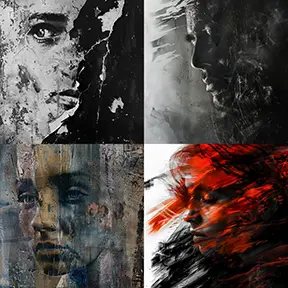
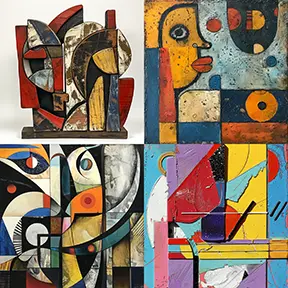
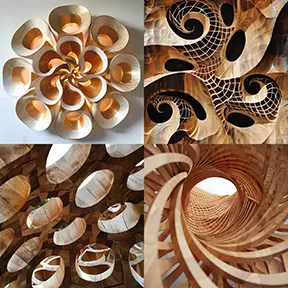
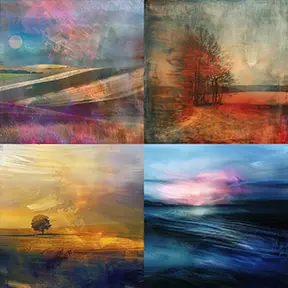
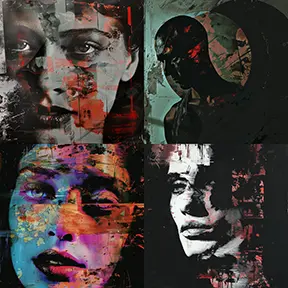
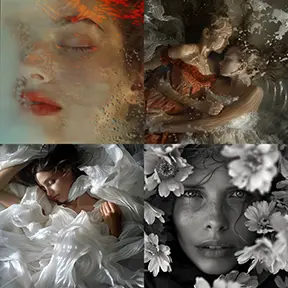
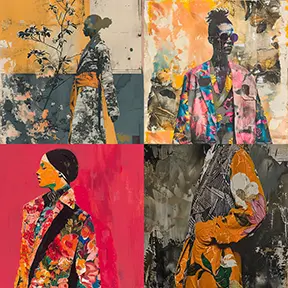
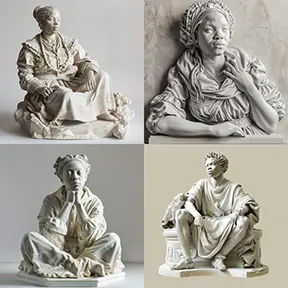
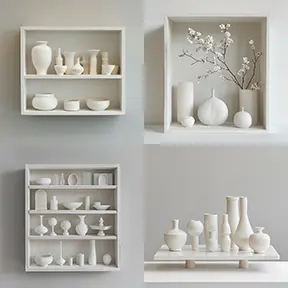
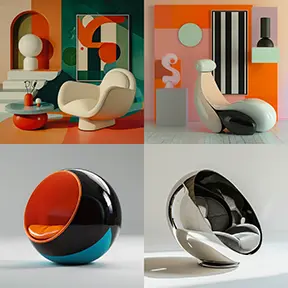
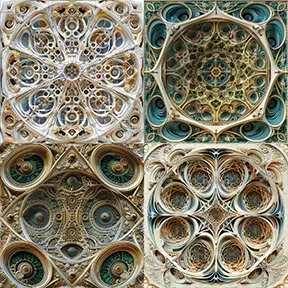
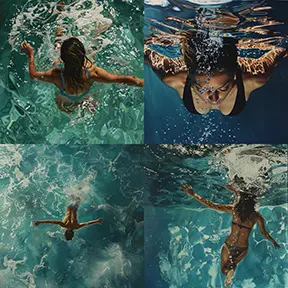
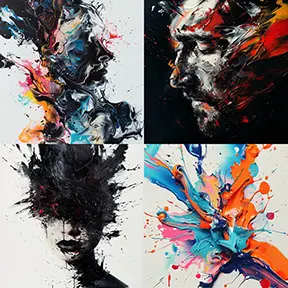
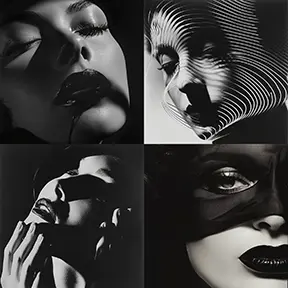
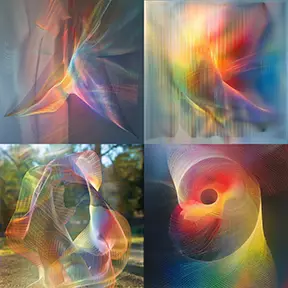
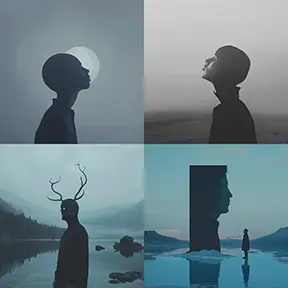
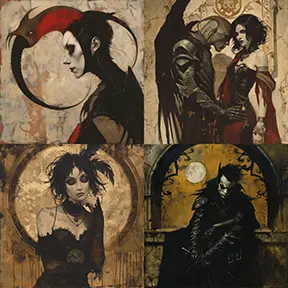
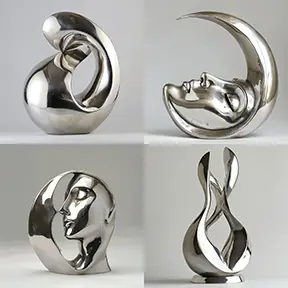
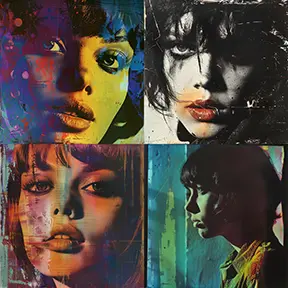
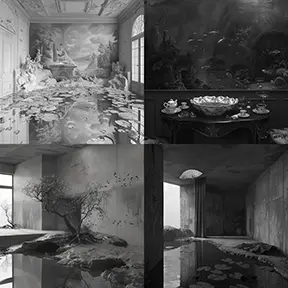
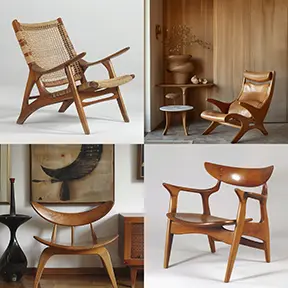
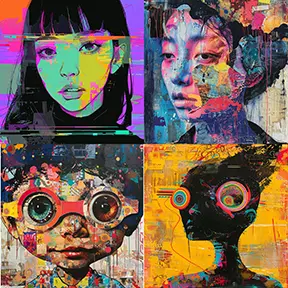
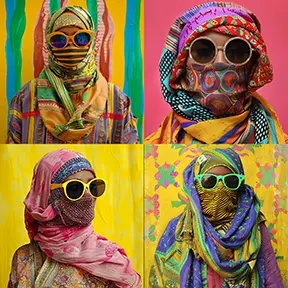
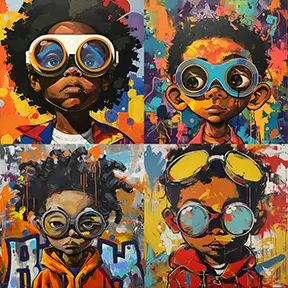
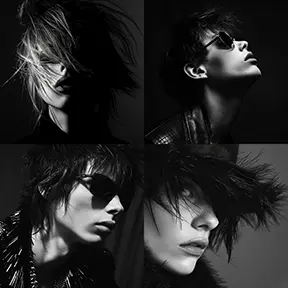
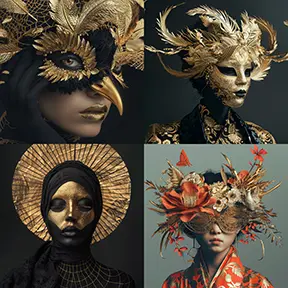
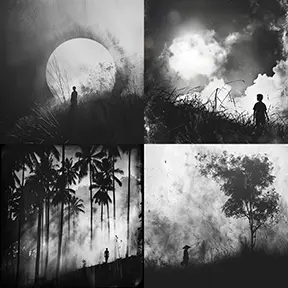
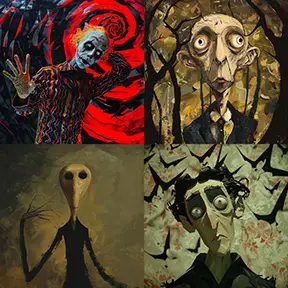
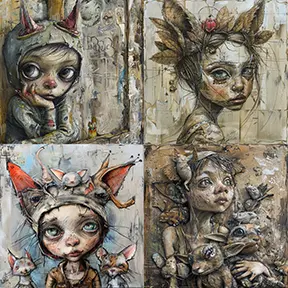
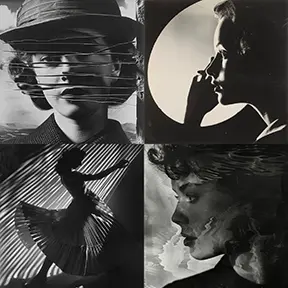
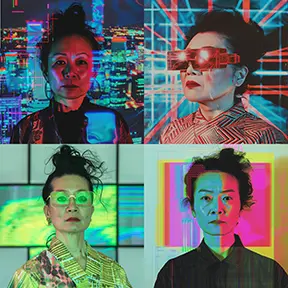
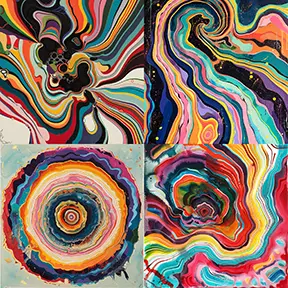
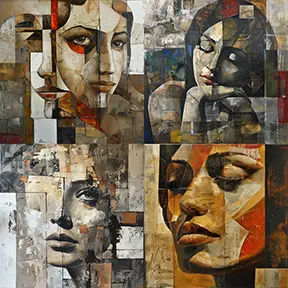
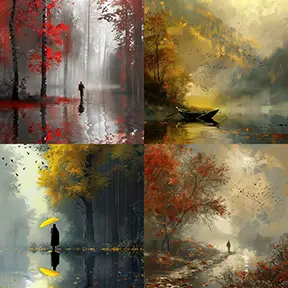
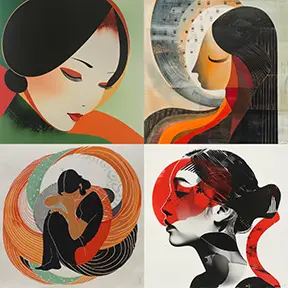
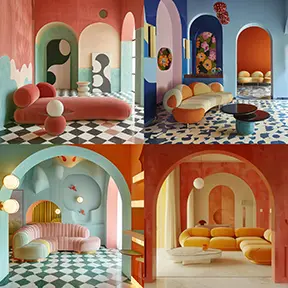
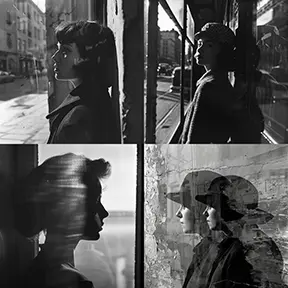
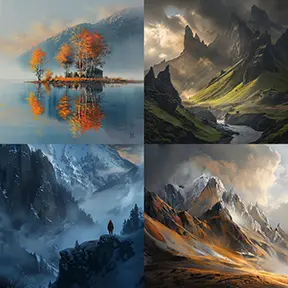
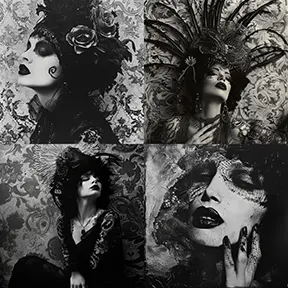
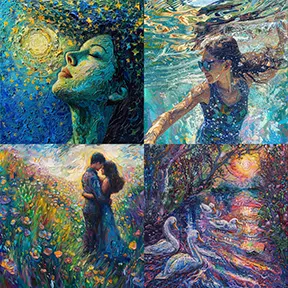
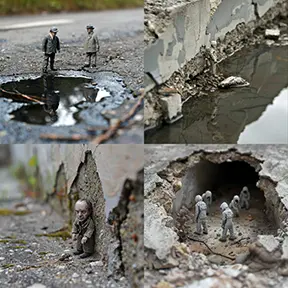
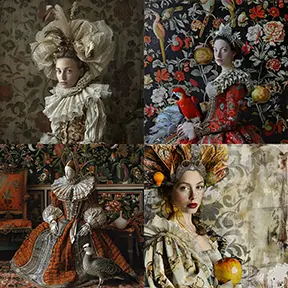
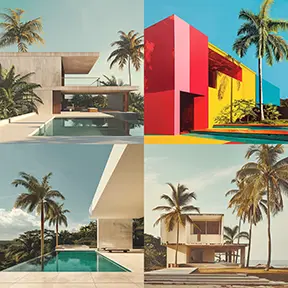

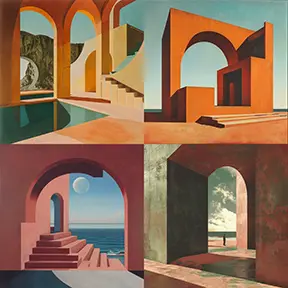
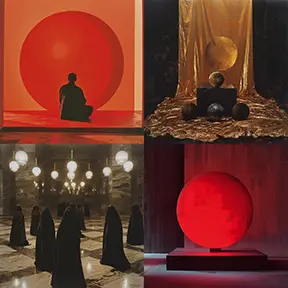
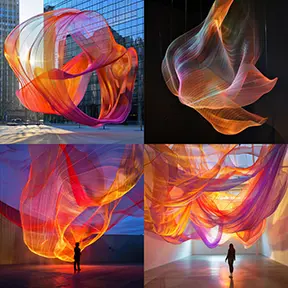
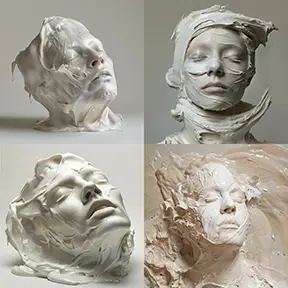
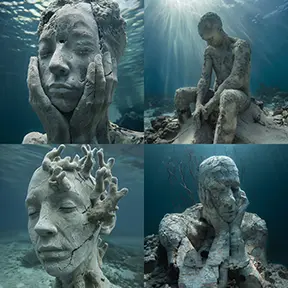
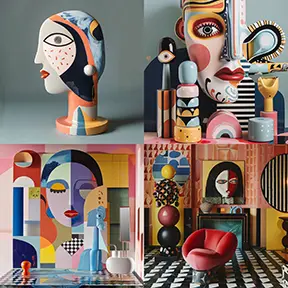
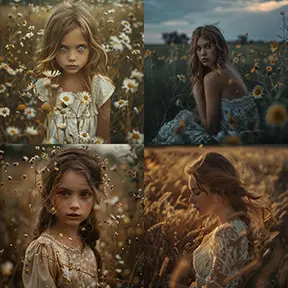
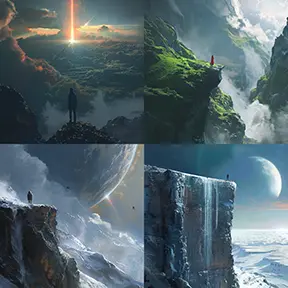
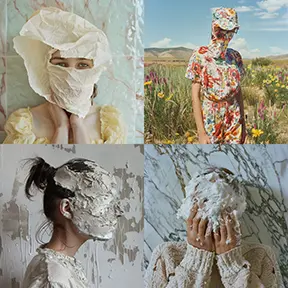
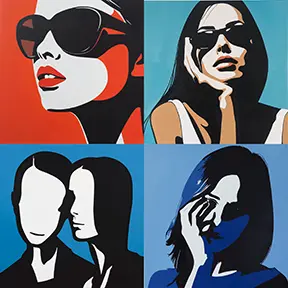
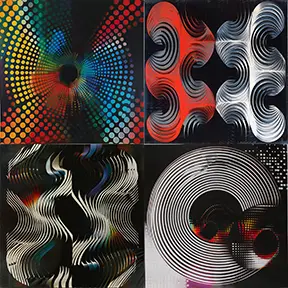
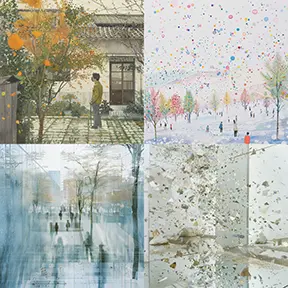
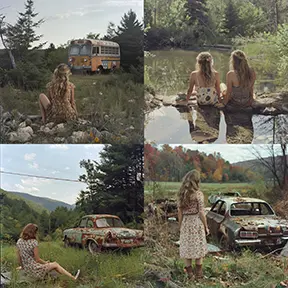
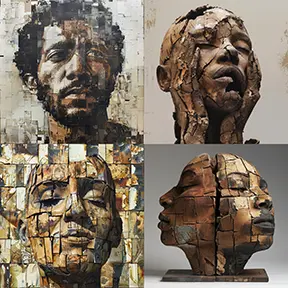
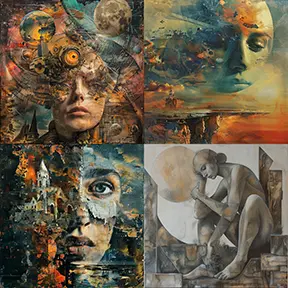
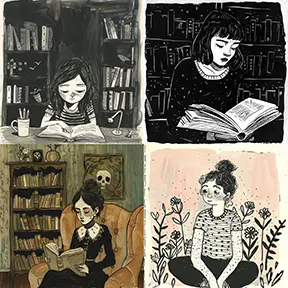
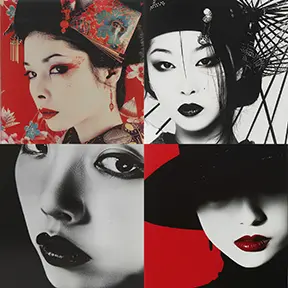
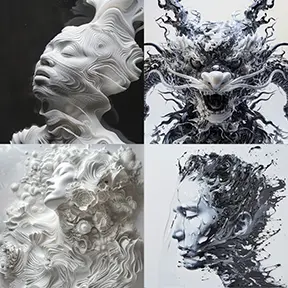
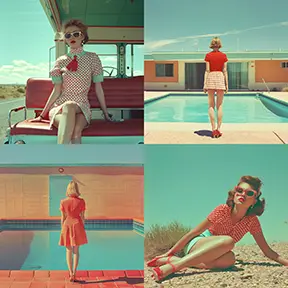
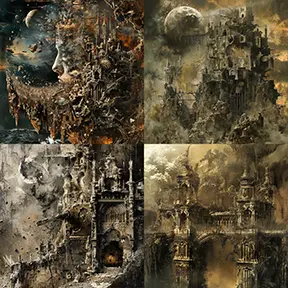
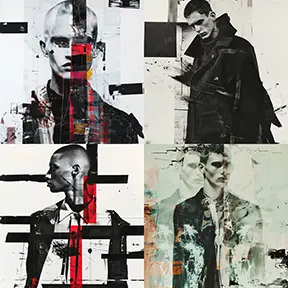
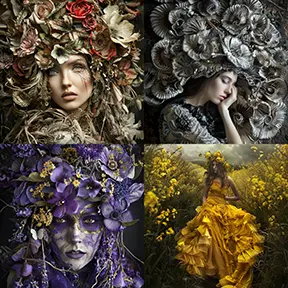
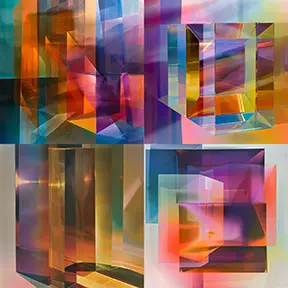
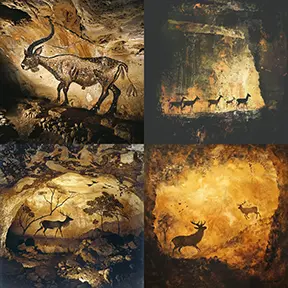
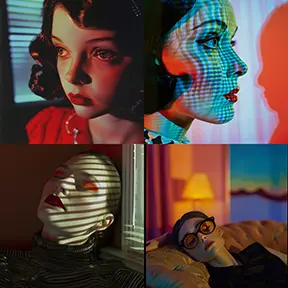
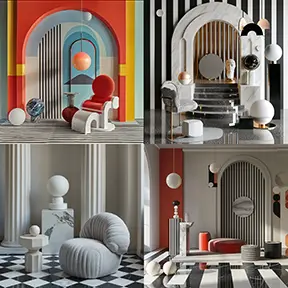
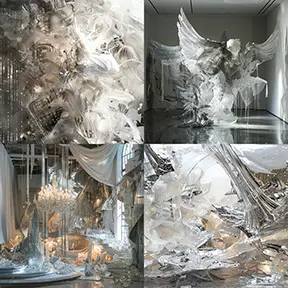
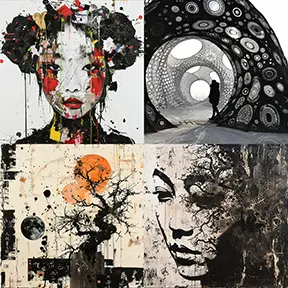
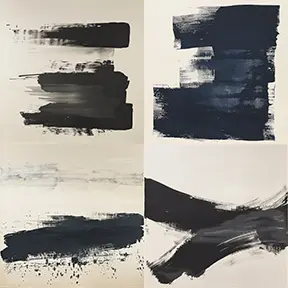
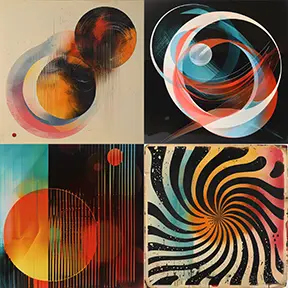
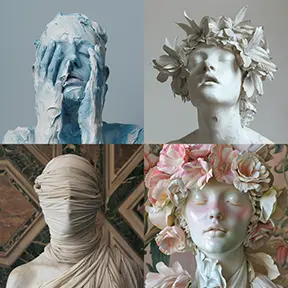
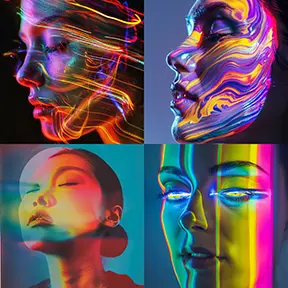
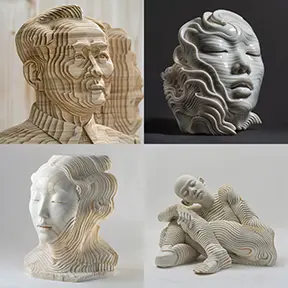
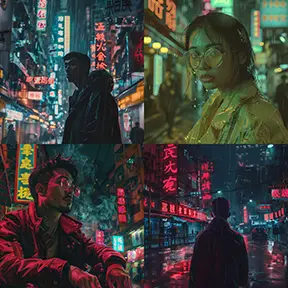
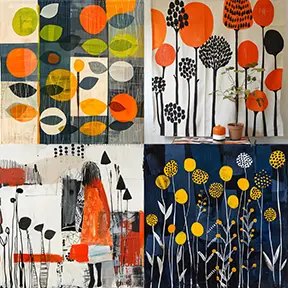
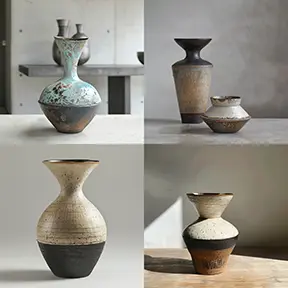
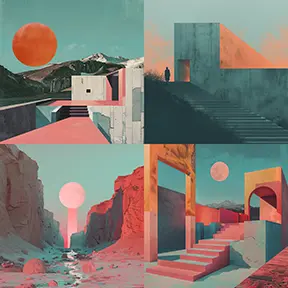
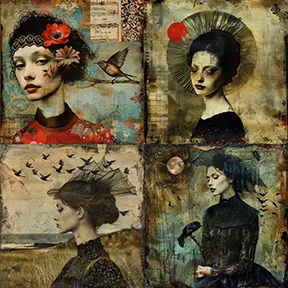
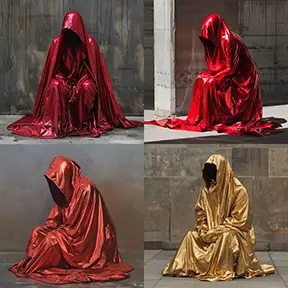
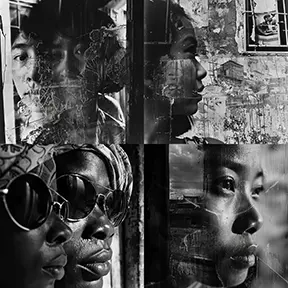
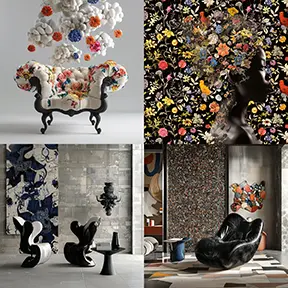
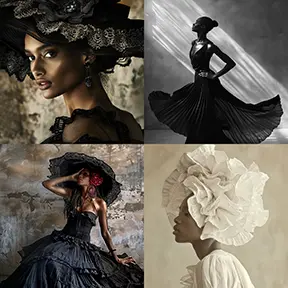
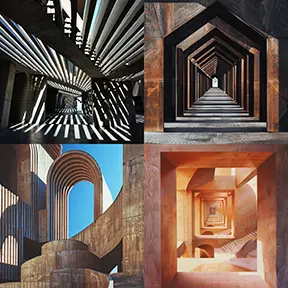
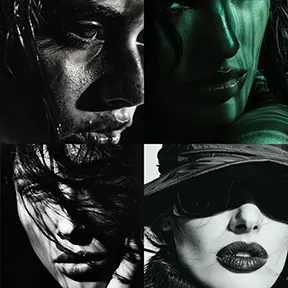
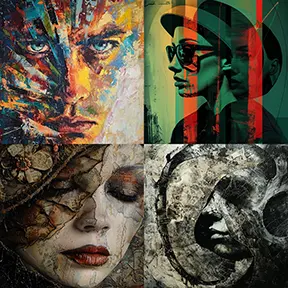
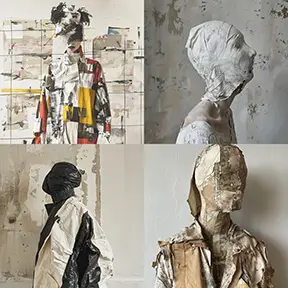
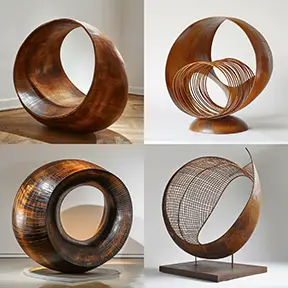
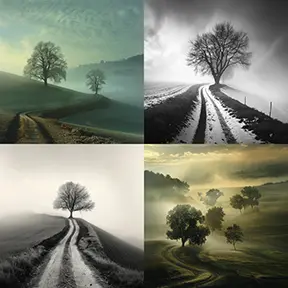
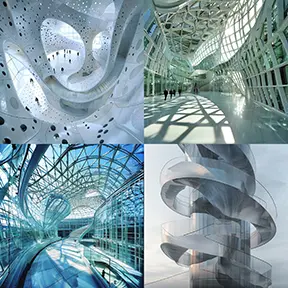
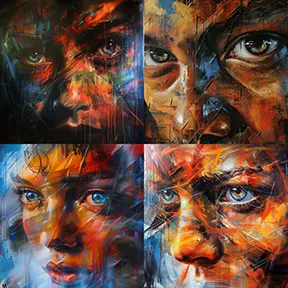
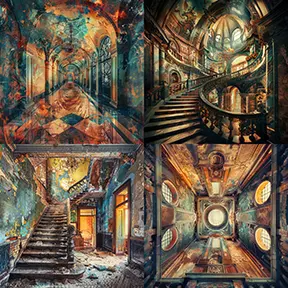
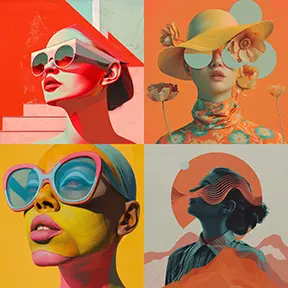
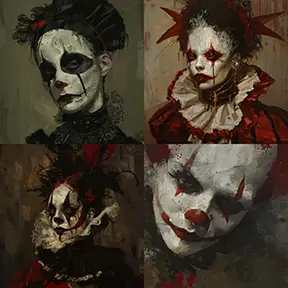
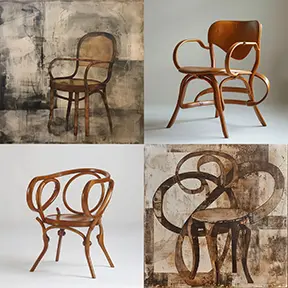
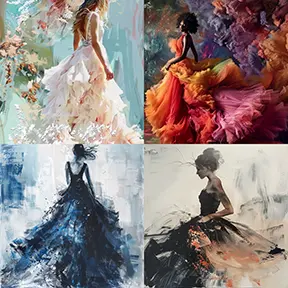
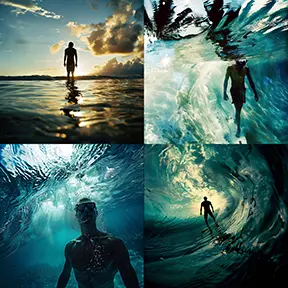
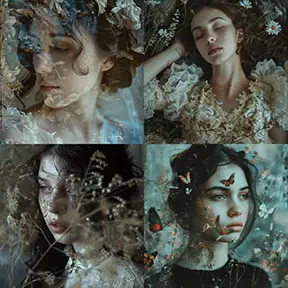
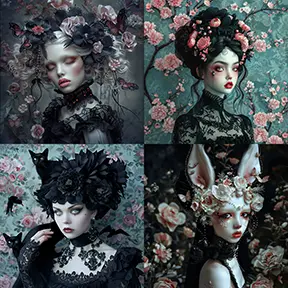
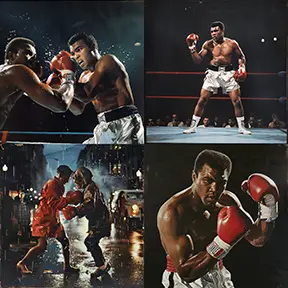
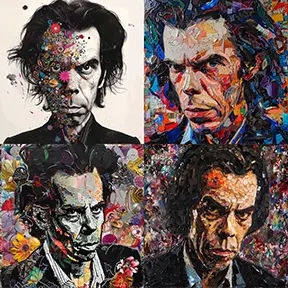
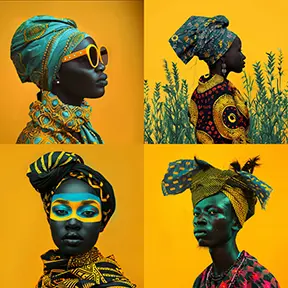
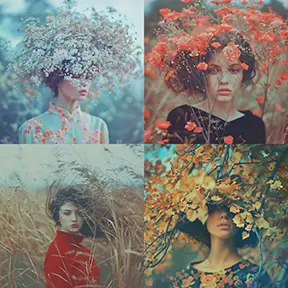
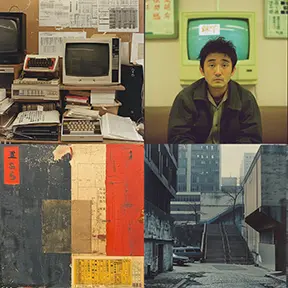
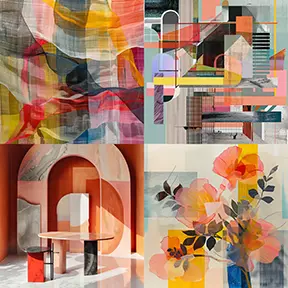
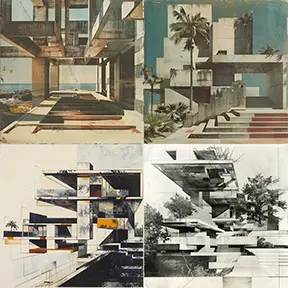
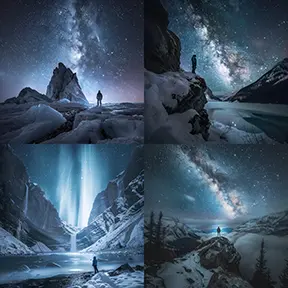
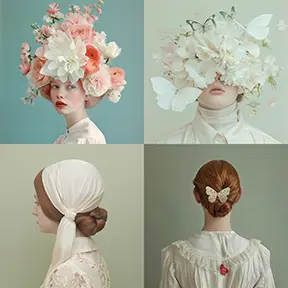
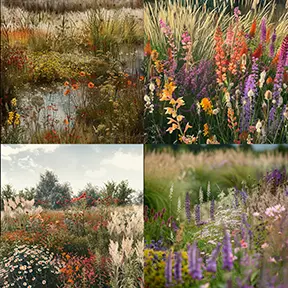
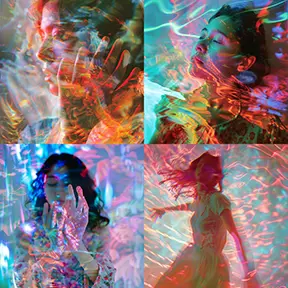
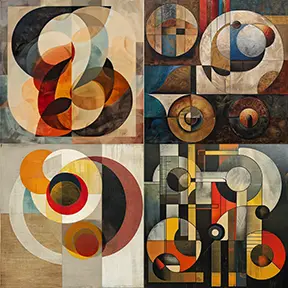
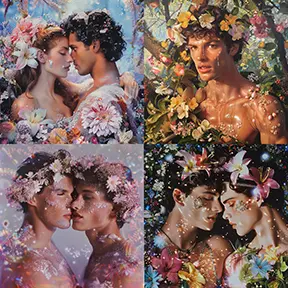
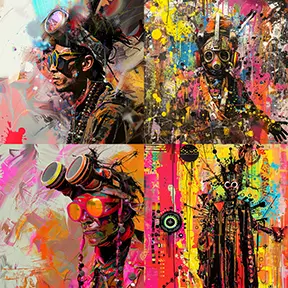
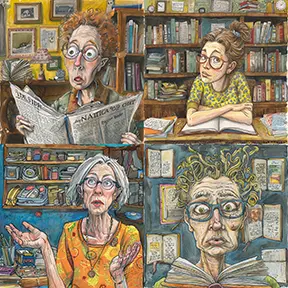
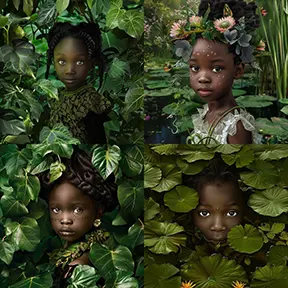
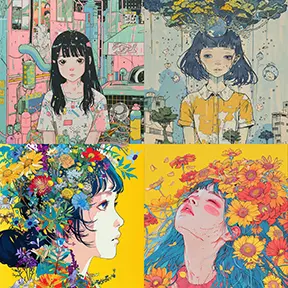
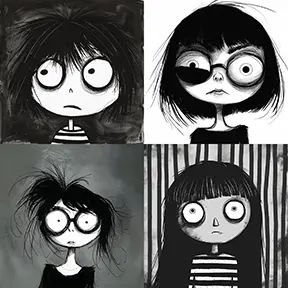
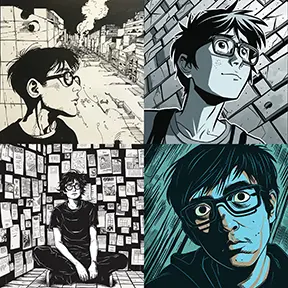
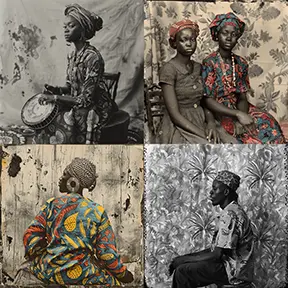
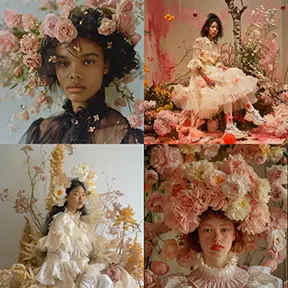
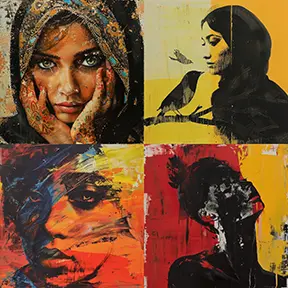
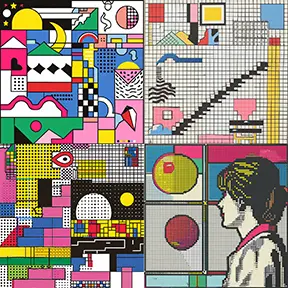
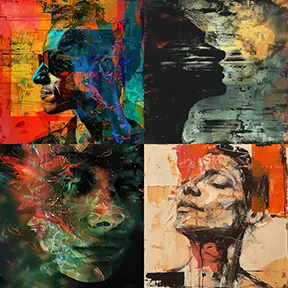
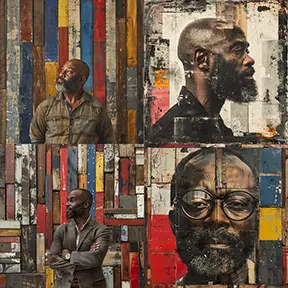
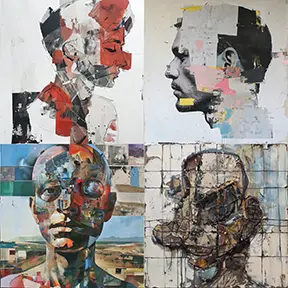
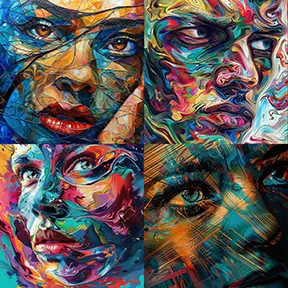
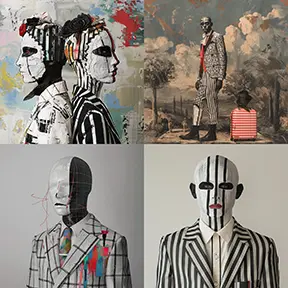
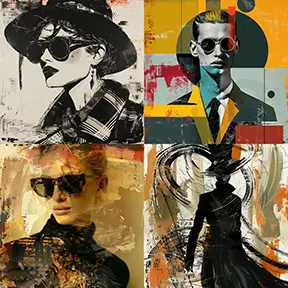
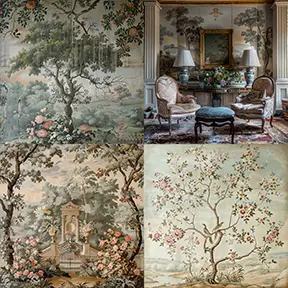
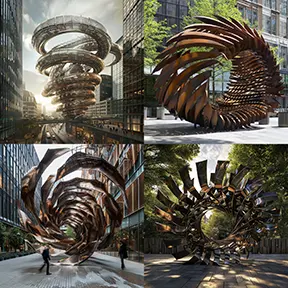
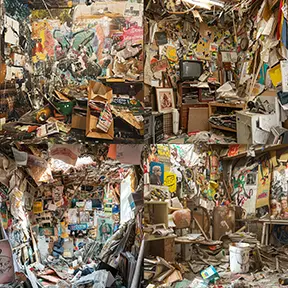
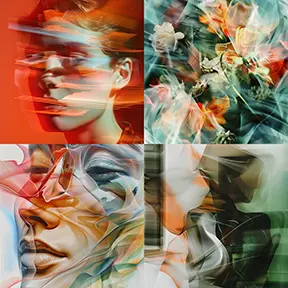
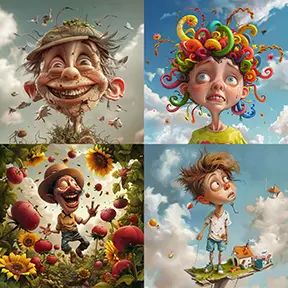
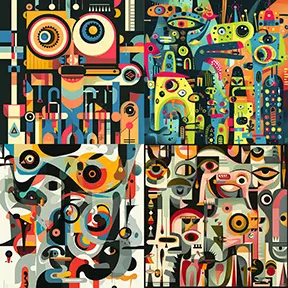
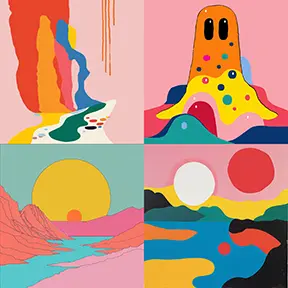
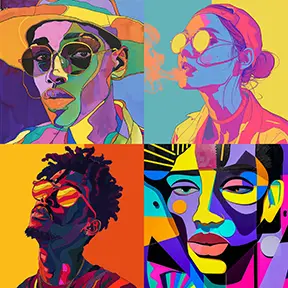
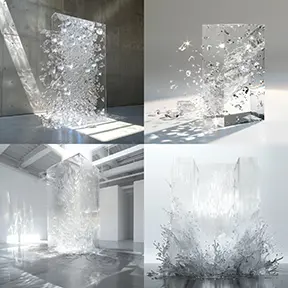
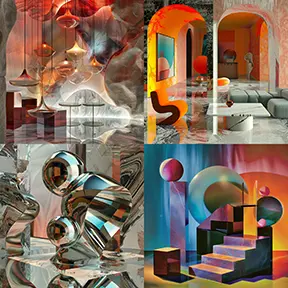
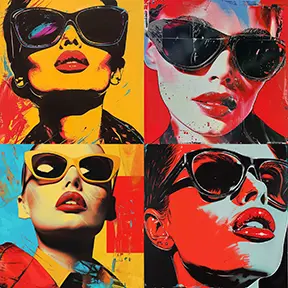
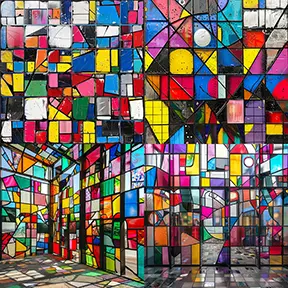
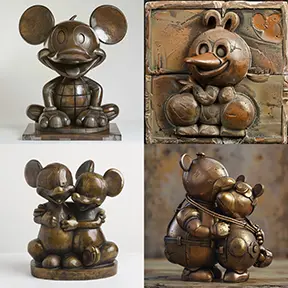
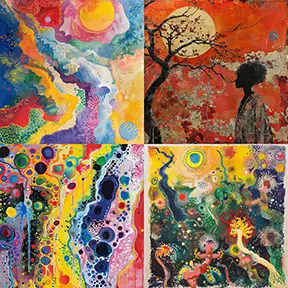
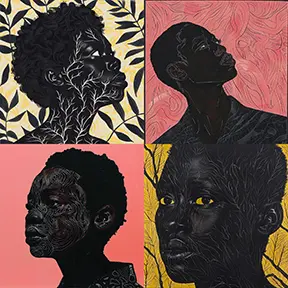
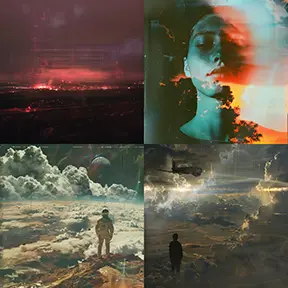
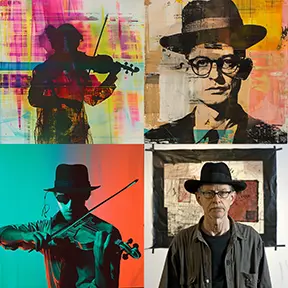
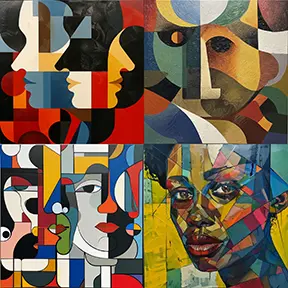
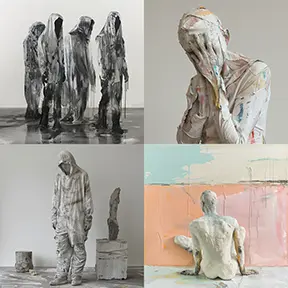
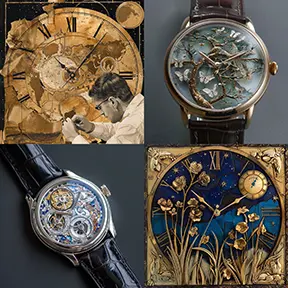
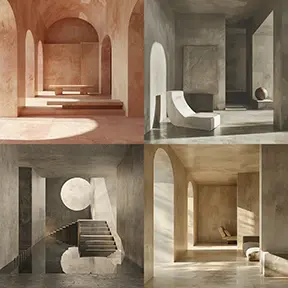
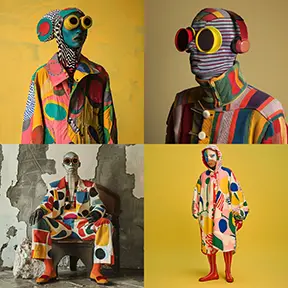
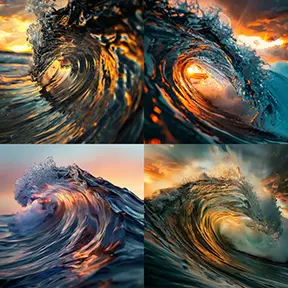
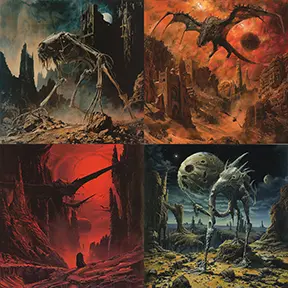
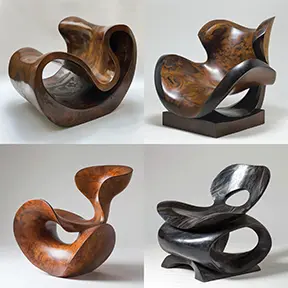
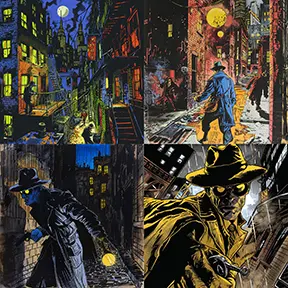
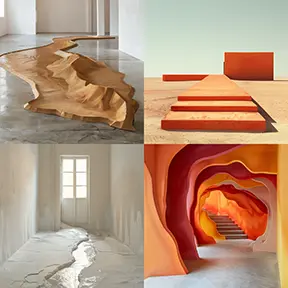
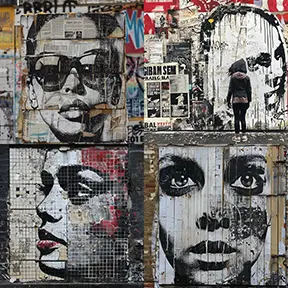
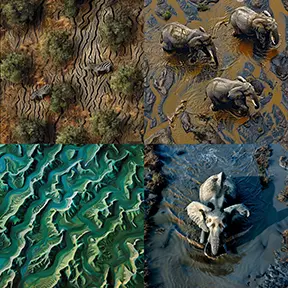
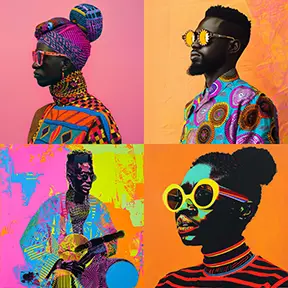
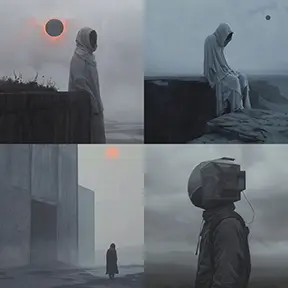
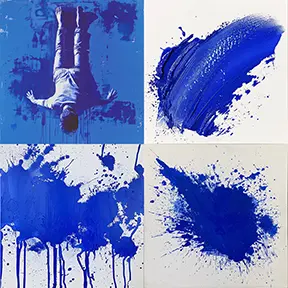
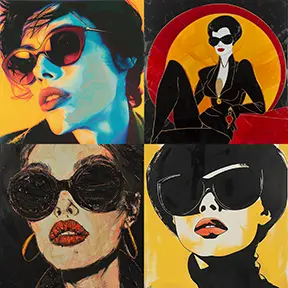
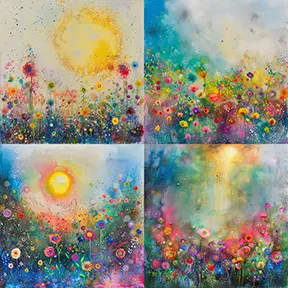
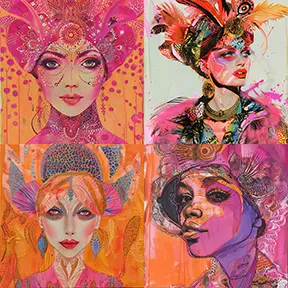
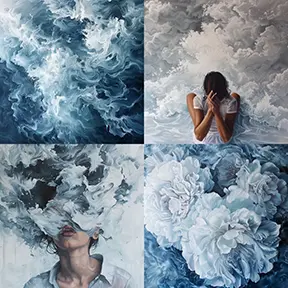
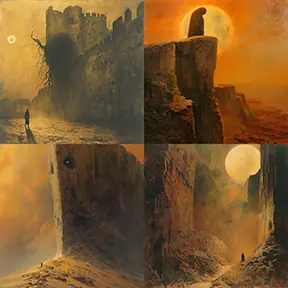
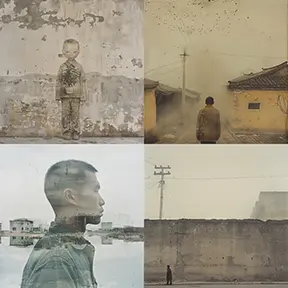
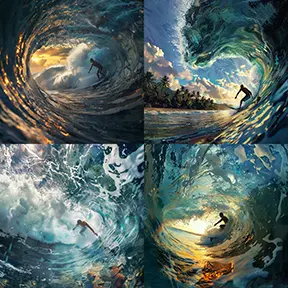
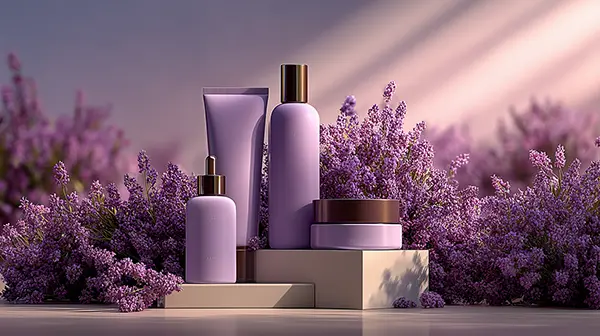
Example AI Prompt Builder Prompts
Product Photography
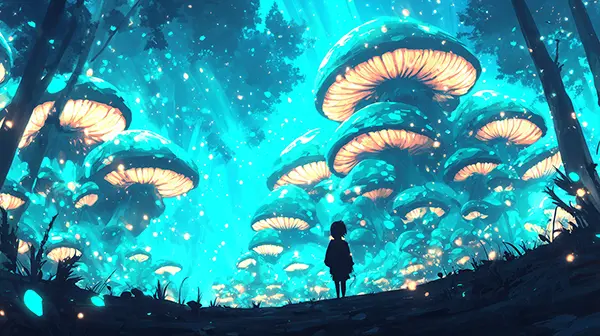
Concept Art
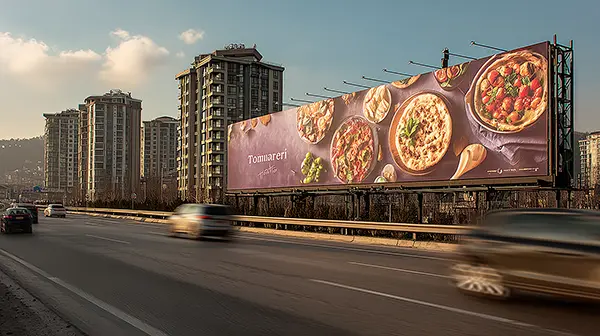
Advertising
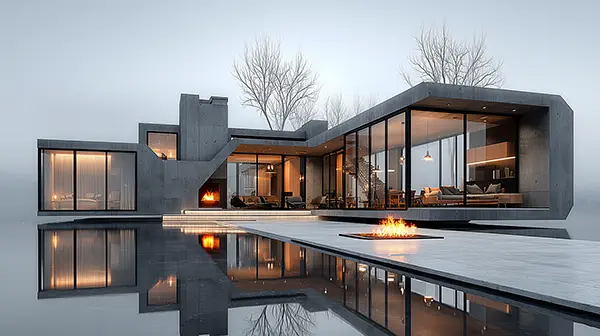
Architectural
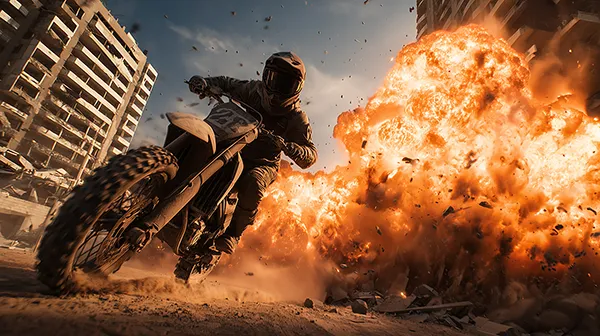
Cinematic
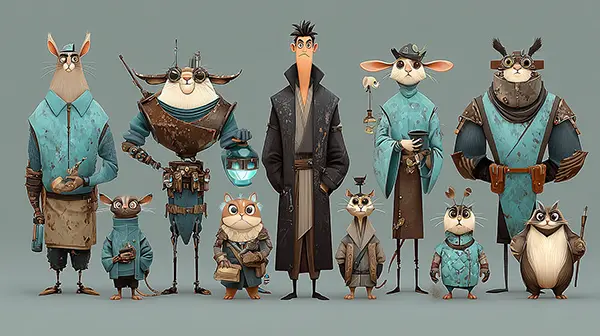
Character Design
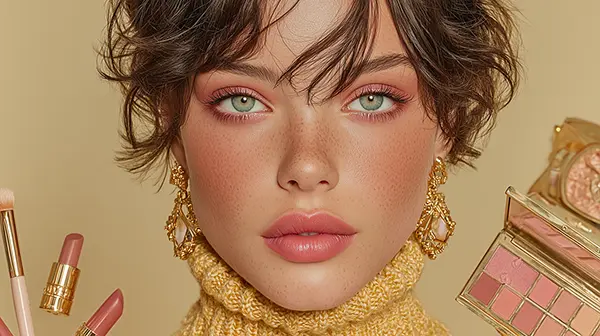
Beauty
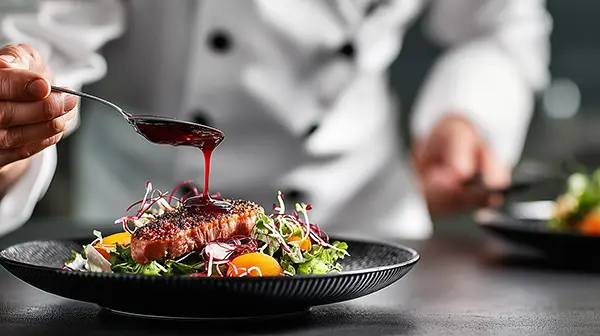
Culinary
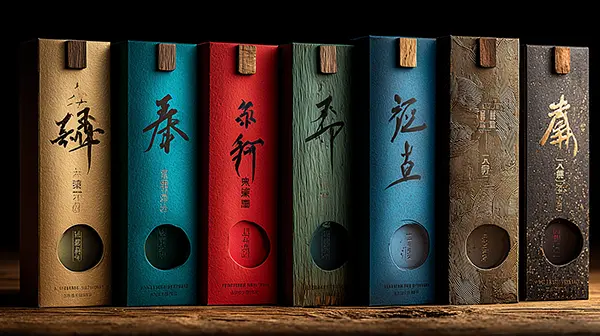
Luxury Packaging
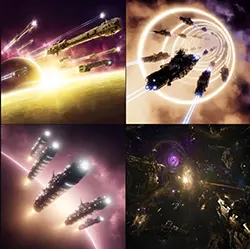
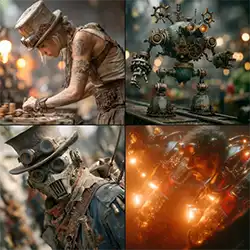
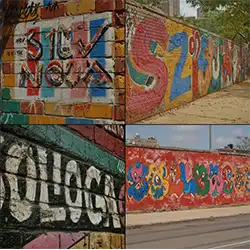
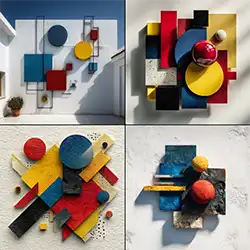
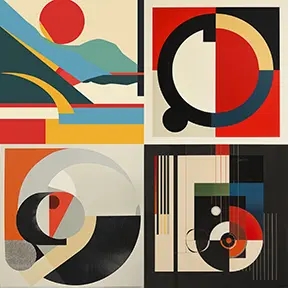
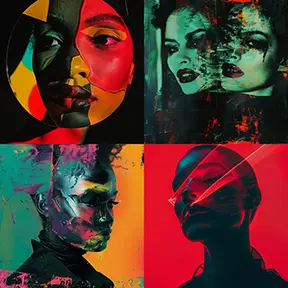
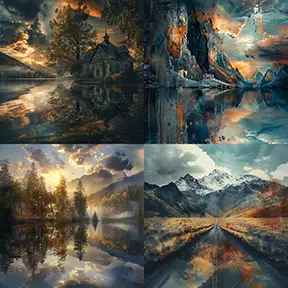
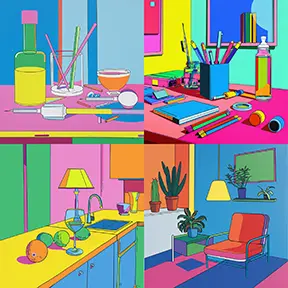
MPM has over 1,500 professional styles used by AI Prompt Builder. Want some inspiration?
View the GalleryReady for More Power?
Pro Editor 3.0 includes AI-powered prompt generation, image and video creation from 27 models, team collaboration, and purchased credits that never expire.